Recording Staged Supply
Set up a Staged Supply plan on a patient's record, print the agreement, record each collection as it happens against a running balance, and generate claims for PPA.
In Light, Staged Supply is managed through a plan on the patient's record, covering setup, the agreement, recording collections, and ongoing tracking. Collections can be as frequent as the plan needs – daily, alternate days, weekly, fortnightly, or a custom cadence – and the Staged Supply list makes it easy to see which customers are due or overdue for collection.
This may work differently to what you're used to. In Light, you record each collection as it happens, and set the next collection date at the same time. The plan builds a record of what was actually supplied – date, who collected, who provided it, units given, and the remaining balance – rather than a fixed timetable of future collections set in advance.
Program rules and forms
You can record Staged Supply in Light whether or not you intend to submit a claim. Claiming has its own program requirements – the Staged Supply Program Rules and the PSA Guidelines set them out:
Written patient consent is required before the service is provided. The consent form is here:
You can attach hard-copy forms to the plan in Light, along with any Staged Supply related communication or GP summary. Record retention periods are set out in the Program Rules.
Starting a plan
There are two ways to start a Staged Supply plan:
- From Services – go to Services›Staged Supply, select Add, then choose an existing customer or add a new one.
- From the customer – open the customer's Staged Supply tab and select Add.
Set the start date and select Create plan.
Adding medications
On the plan, add each medication to be staged – selected from the patient's dispense history or entered manually. For each medication, capture:
- Medication name, Dose, and Cadence (for example, daily)
- Total quantity authorised on the prescription (optional) – used to track the remaining balance
- Observed administration – whether the dose is to be taken under supervision
Bright idea
Selecting medications from the patient's dispense history saves re-keying. It needs the patient linked to your dispense system – see Connecting your dispense system.
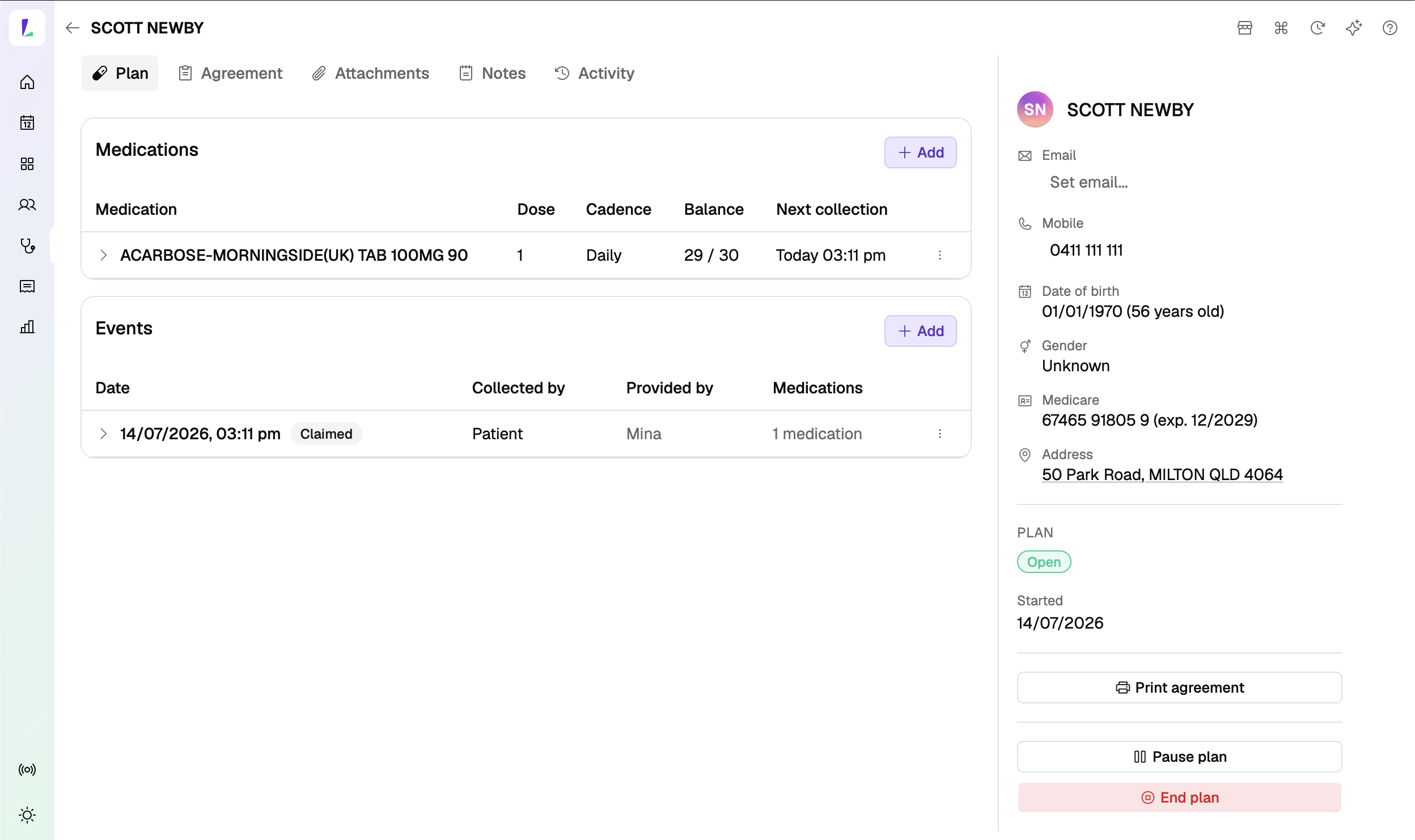
Once a medication has a recorded collection against it, it can no longer be removed from the plan – this keeps the supply record intact.
Recording the agreement
On the plan's Agreement tab, record the agreed service terms, then produce and print the agreement. It captures the service description, new prescription requirements, missed or lost doses and the procedure for them, other arrangements for missed doses, supply during extended public holidays, and transfer or discontinuation of the service.
The agreement also carries the patient's details from their record – including their concession card, under Concession card details. See Editing customer details.
Rather than printing it for a wet signature, you can have the patient sign the agreement digitally – see Requesting a signature.
Recording collections
There are two ways to see staged supply: go to Services›Staged Supply for the full list of your staged supply customers and whether they're due or overdue for collection, or open a customer's Staged Supply tab to see just their plans. Each plan shows its next collection date, with a red Overdue badge when that date has passed – so a lapsed collection stays visible and sorts to the top rather than disappearing. Open a plan to see each medication's running balance and its own next collection date, badged Overdue the same way.
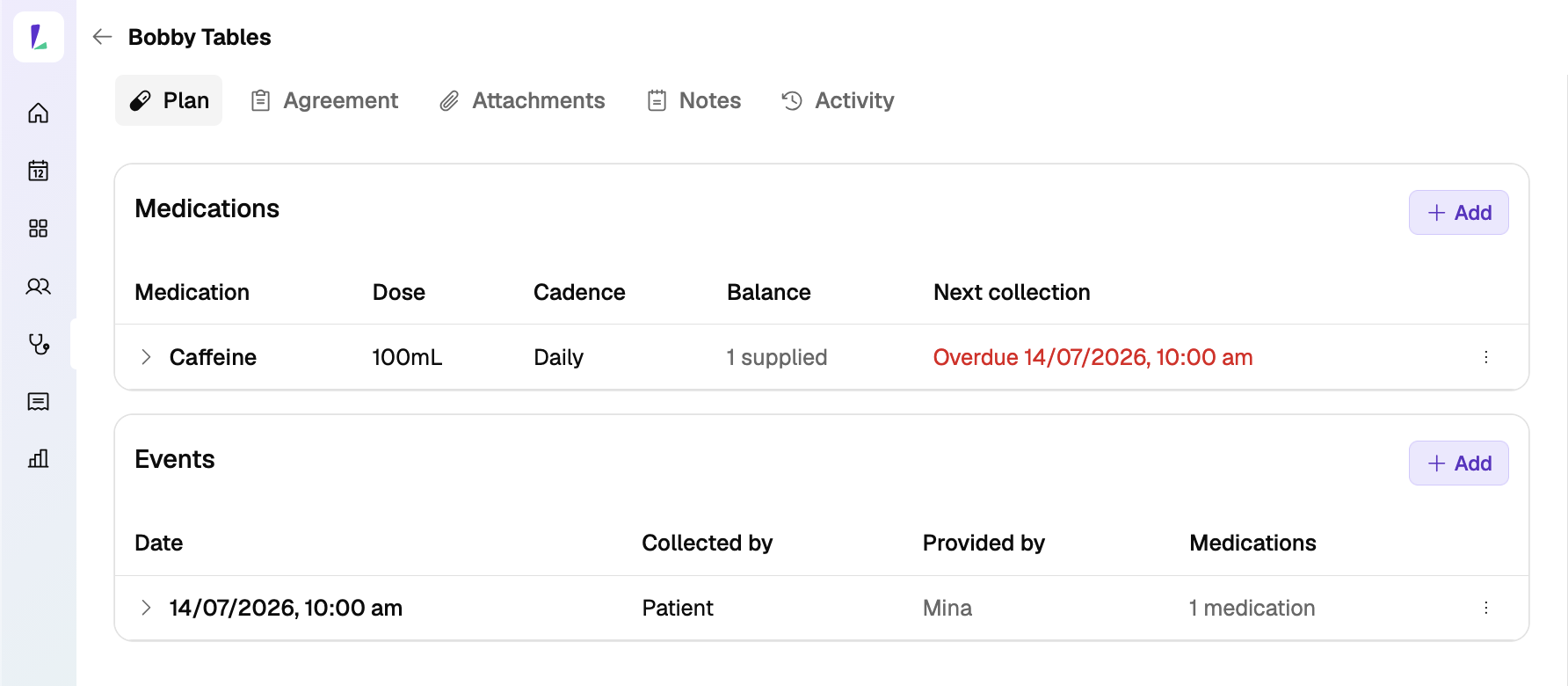
When a patient comes in to collect, record the collection against their plan – this is what marks it as collected and clears the Not collected status on your dashboard.
- Start a collection
On the plan, under Events, select Add to open the Record collection sheet – or use Add event from the plan's menu on the Staged Supply list. Each medicine defaults to Collected, and the time defaults to now.
- Choose the pharmacist
Set Provided by to the pharmacist supplying the collection. If a carer collected rather than the patient, change Collected by, and add any notes.
- Adjust if needed, then record
Turn the Collected toggle off for any medicine that wasn't taken, and adjust the days covered, units given, or next collection date if they differ. Then record the collection.
Requesting a signature
The patient can sign digitally on their own phone or an in-store device – either the agreement, or an individual collection.
- The agreement – on the plan's Agreement tab, choose Request signature. Signed copies are listed under Signed Agreements, and you can print a signed copy at any time. If the plan changes after it was signed, Light flags that the agreement has changed since it was last signed, so you can request a fresh one.
- A collection – record the collection first, then open that event's menu under Events and choose Request signature. There's no signature step inside the Record collection sheet itself.
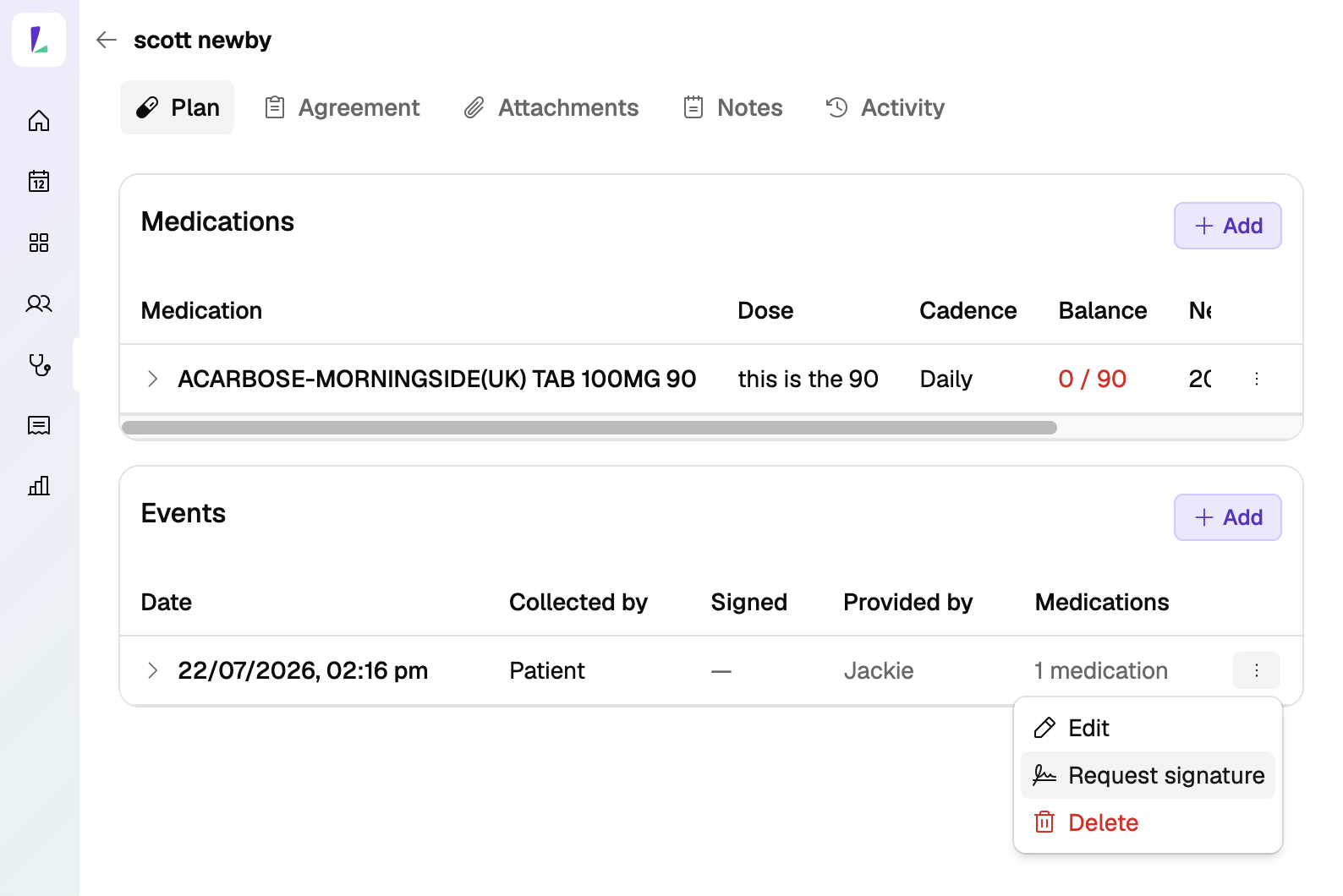
The Request signature sheet gives you a few ways to get it in front of the patient:
- Copy link to clipboard
- Show QR code – the patient scans it with their own phone
- Send to a kiosk – choose one of your site's paired in-store devices
For a collection, Light also sends the link to the patient – by email where you have one on file, otherwise by SMS.
The patient opens the link, enters their full name, signs by drawing or typing it, then submits. Each link can only be used once. There's no way to cancel a request – if something's wrong, request a new signature.
Sending by SMS or email needs a mobile or email address on the patient's record. Sending to a kiosk needs paired devices at your site.
Seeing what's been signed
The Events table has a Signed column – a dash where no signature has been requested, Awaiting while one is outstanding, and the signer's name once it's done. If an event is edited after it was signed, Light marks the row so you know the signature may no longer match the current details.
The page doesn't update by itself while you're waiting – reload it to see a signature come in.
Bright idea
When you print a signed agreement, both the patient's signature and yours are stamped onto it. Yours comes from the Light user who requested the signature, so save your digital signature first – go to Settings›Team, open your user, then Signature. See Adding your digital signature.
Tracking over time
- Each medication shows a running balance counting down against the script (when a total quantity is set).
- Light tracks each medication's next collection date and flags overdue collections.
- The events ledger lists every collection – date, who collected, who provided it – and expands to per-medication detail.
- Different pharmacists can record collections across different days, so the plan persists across staff and shifts.
A plan has a state (for example, Open) and a start date, and can be paused or ended as circumstances change.
Claiming
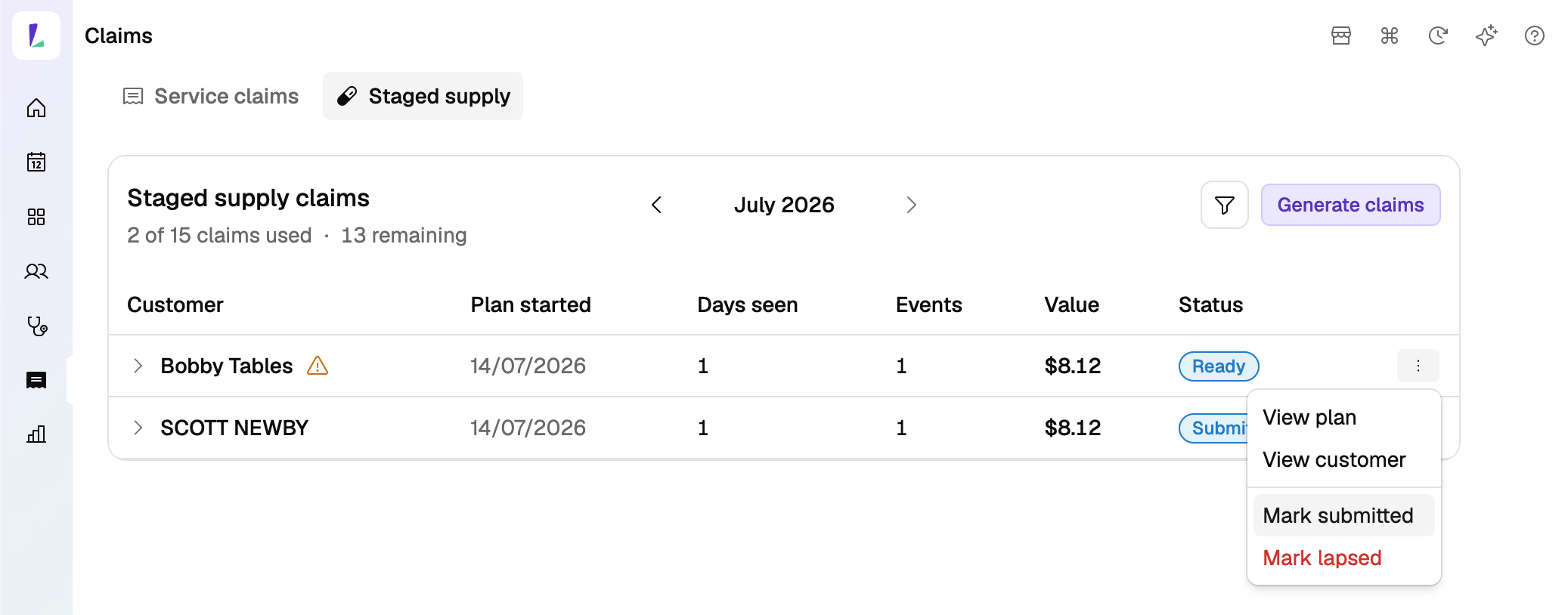
On the Claims screen, open the Staged Supply tab to see your Staged Supply claims for the month, with your claim allowance (for example, "2 of 15 used"). Each shows the customer, plan started, days seen, events, value, and a status (for example, Ready or Submitted). Select Generate claims to prepare your claims.
If Light detects something that may prevent a claim, it highlights the issue for you – for example, a missing Medicare or DVA number.
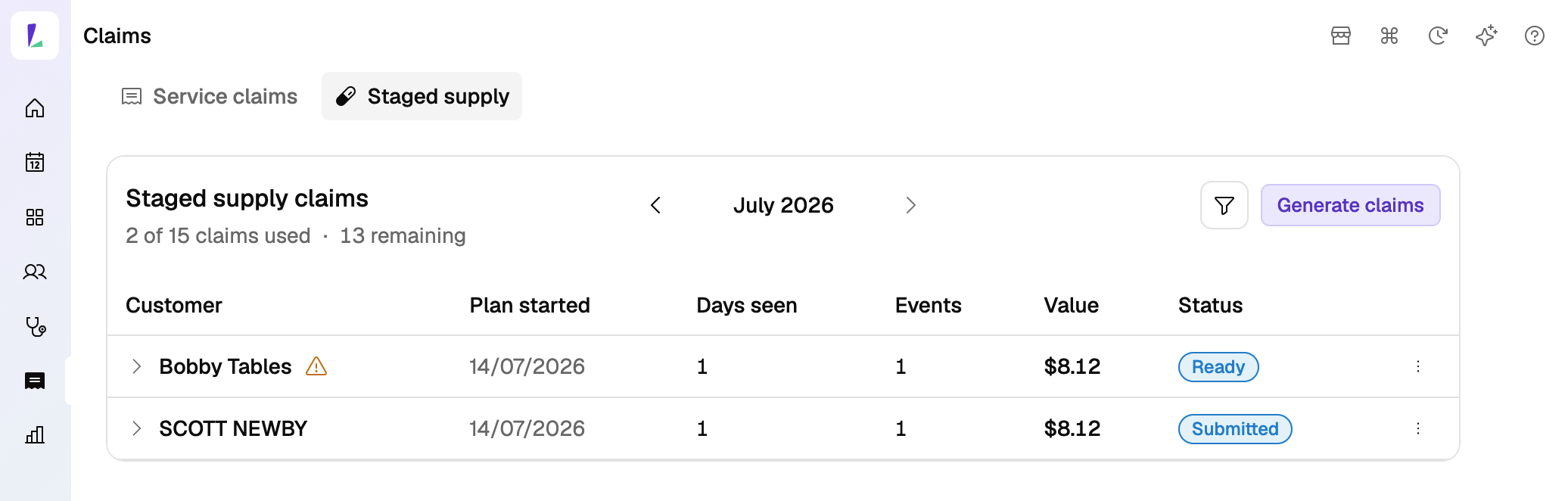
Light doesn't lodge claims. You lodge them manually in the PPA Portal. After you've submitted a claim through the PPA Portal, mark it as Submitted in Light to keep your records up to date. Once the PPA claim has successfully gone through, mark it as Accepted.
Recording responsibility
This article explains how to record this encounter in Light. Practitioners remain responsible for delivering the service in accordance with applicable clinical, program and jurisdictional requirements and for maintaining a complete and auditable record. See Recording Encounters in Light.