Adding your digital signature
Draw or type a signature so it prints automatically on certificates and other documents.
Your digital signature is stored against your user and prints automatically on the documents that need it – like leave certificates – so there's no wet-ink step at the counter. Set it once and change it whenever you like.
Steps
- Open your user
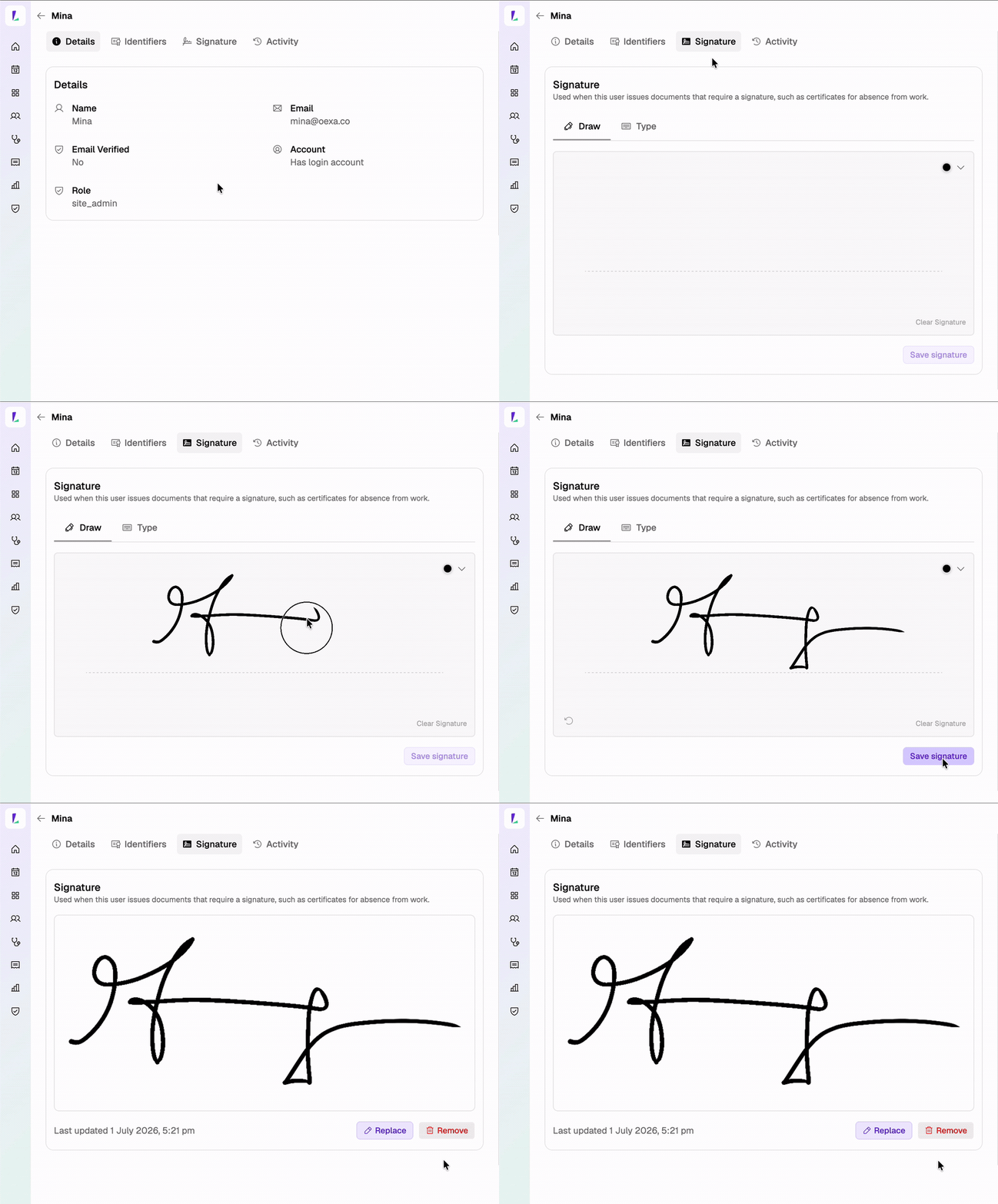
Go to Settings›Team and open your own user from the table.
- Go to Signature
Open the Signature section on your user.
- Draw or type your signature
Draw your signature with a mouse, trackpad, or touchscreen, or Type your name to generate one.
- Save
Tap Save. Your signature is stored and will print on certificates automatically.
Changing your signature
You can update your signature at any time – reopen the Signature section, draw or type a new one, and save again. The new signature applies to documents you print from then on.