Recording an Oral Contraception Pill (OCP) – Initiation NSW consultation
Record an oral contraception initiation, change of therapy, or continuation in NSW, then print or email the patient summary and any referral.
The Oral Contraception Pill (OCP) – Initiation NSW consult is a structured encounter for initiating oral contraception, changing therapy, or continuing an existing therapy, delivered under the NSW Health community pharmacy protocol. The consult is available in NSW only.
This service is separate from the Hormonal Contraception – Resupply / Continuation consult, which covers resupply across the ACT, NSW, SA and WA. See Recording a hormonal contraception resupply.
Before you start
The service is available to pharmacists who have completed the required training and registered with NSW Health to provide it. For the training, registration and service requirements, see Oral contraceptive pill initiation on the NSW Health website.
Contact support to enable the program and encounter in your pharmacy.
Starting the service
There are three ways to start:
- From Services – go to Services, select Add, choose the oral contraception service, then select an existing customer or add a new one.
- From the customer – open the customer's record, select Services, then choose Add service and select the oral contraception service.
- From a booking – if the patient booked in for the service, start the encounter from their booking.
The pilot is the patient's choice
The first thing the patient is asked is whether they consent to participate in the NSW Health community pharmacy pilot. Participation is voluntary, and they can withdraw at any time without affecting their care.
If they answer No, the consultation can still go ahead – it just isn't recorded as a pilot consultation. The rest of the pre-screener doesn't apply, so they aren't asked the consent, screening or declaration questions, and you work through the encounter without pre-screener answers to review.
The pre-screener
Where the patient opts into the pilot, they complete a pre-screener before you begin – pilot consent, a screening questionnaire covering the history and risk factors the protocol asks about, and a patient declaration.
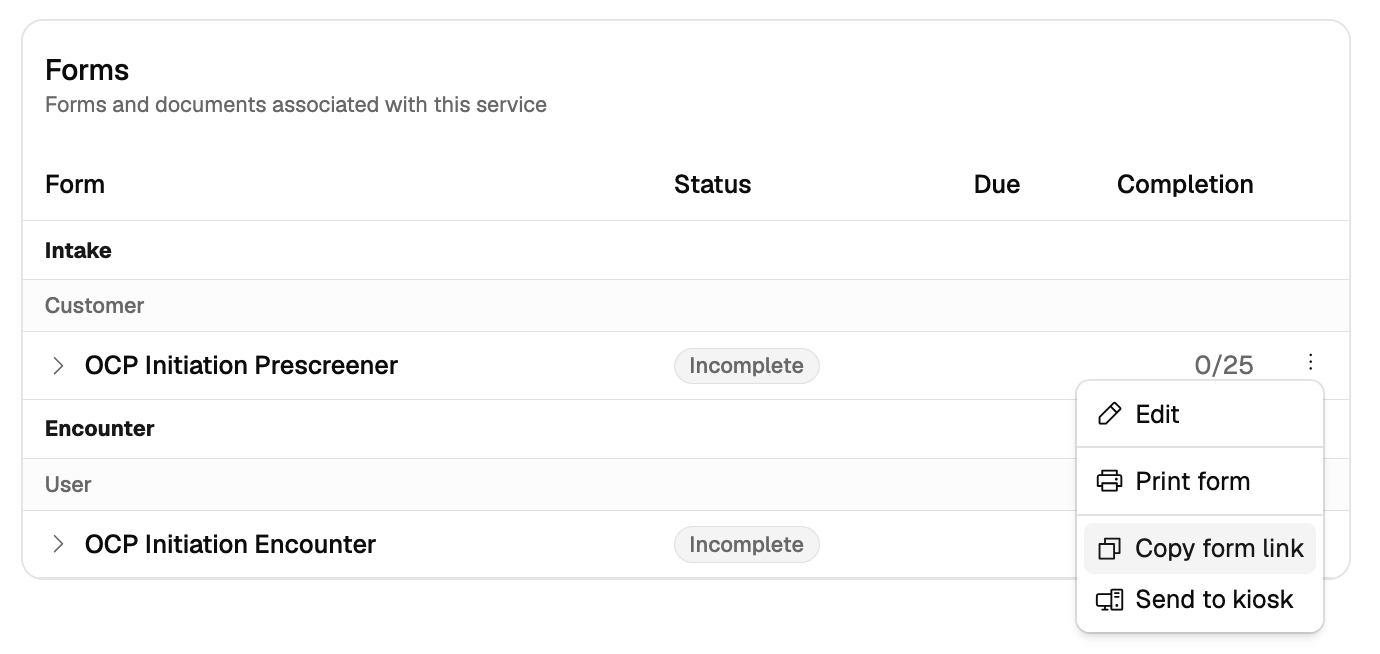
They can fill it in themselves on a kiosk or their own device – see Sending a form to a kiosk. You can also open the menu on the OCP Initiation Prescreener row in the Forms card and choose Copy form link, then open that link in your browser to complete the form together with the patient.
The pre-screener is a preliminary screening tool and doesn't replace your consultation. When the patient submits it, the encounter shows one of:
- Ready for pharmacist assessment – the responses haven't identified an immediate issue.
- Pharmacist review required – one or more responses need your review.
- Pilot service may not be suitable – the responses indicate supply under the protocol may not be available.
Consent answers carry across into the encounter. If you change a consent answer so it differs from the pre-screener, an alert asks you to confirm the encounter answer reflects the patient's current consent.
Choosing how you work through it
In the encounter header, the Form display control switches between:
- Continuous form – one scrolling page, with a section rail down the left to jump between sections.
- Step-by-step form – a guided wizard that takes the sections a screen at a time.
Pick whichever suits you – the record is the same either way.
The reference panel
The Reference panel opens beside the encounter with the NSW protocol reference – supply limits, the circumstances in which the protocol says not to supply, and referral requirements – along with links to the NSW Health service page and the published protocol. You can keep it open as you work.
The reference reflects its sources as at a point in time, not a live feed. See How the platform uses clinical protocols and standards.
Working through the consult
Service details, pilot and consent
Record the service date and time and the consulting pharmacist, and confirm whether the patient is proceeding under the pilot – this defaults from their pre-screener answer where there is one.
Record that you've explained the service and its cost, obtained consent to proceed, and whether consent was verbal or written. If it was written, upload the signed consent document as an attachment. Record the patient's My Health Record consent separately.
Eligibility
The eligibility criteria are pre-ticked from what's already known – the patient's age from their record, and sex assigned at birth and primary purpose from the pre-screener where one was completed. Confirm each one, then record your conclusion on whether the patient meets the service eligibility criteria.
Clinical assessment
Work through the assessment:
- Pregnancy and breastfeeding – whether pregnancy can be confidently excluded, breastfeeding status, and whether emergency contraception was discussed.
- History – smoking or vaping status, migraine with aura, any change in bleeding pattern or unexplained bleeding, current medical history, current medications, allergies and adverse effects, and prior contraceptive use. Select View dispense history to check current medicines against the patient's dispense record.
- Examination – BMI and blood pressure. If the first reading is elevated, the consult prompts for a second reading at the end of the consultation.
- Contraindications – whether any contraindications to supply are present, which ones, and whether the patient is clearly low risk and appropriate for pharmacist management.
- Sexual and reproductive health – LARC discussion, sexual and social history, cervical screening, STI risk and symptoms, HPV vaccination, breast awareness, condoms and STI prevention, and any concerns about sexual violence, abuse or reproductive coercion.
Alerts appear beside the encounter as you record answers the protocol treats as significant, each citing the protocol point it relates to. See The alerts panel.
Where the consult stops
Some answers stop the consult and offer to take you straight to Management – for example, where the patient doesn't meet eligibility, pregnancy can't be excluded, blood pressure is still elevated on the repeat reading, or a contraindication is present. You can then record the outcome and referral without working through the sections that no longer apply.
The stop shows the protocol point it comes from.
Management
Record the consultation type – initiation therapy, change to therapy, or review / continuation – and whether use has been continuous or there's been a break.
Select the formulation and brand to supply, and your rationale. The formulations available follow the protocol reference.
Record the supply duration. The maximum for the consultation type you chose is shown beside the field.
Record the outcome: oral contraceptive pill supplied, no supply, or referral. Where there's no supply, add notes explaining why.
Counselling and follow-up
Record the advice given – how to take the pill and when it's less effective, what to do if a pill is missed, side effects and how to manage them, the importance of adherence, the written resource provided, and the importance of regular sexual and reproductive health checks. Record whether you advised a comprehensive review with a GP or sexual health service, along with any follow-up date and notes.
Clinical note
The Clinical note is built from your selections for you to edit. Add anything the structured fields don't hold here, in the Notes panel, or as an attachment.
Recording the referral
Record the referral and choose the pathway – regular GP, sexual health service, another healthcare provider, or Healthdirect where the patient has no regular GP and none is available. Light builds the referral information from the encounter for you to edit.
A referral you make during the consult is added to the patient's referral list, where you can see and manage it alongside their other referrals. See Recording a referral.
Communication plan, sharing and My Health Record
Record whether you provided the patient with a copy of the record of the service, whether the record was shared with their usual medical practitioner, and whether the details of supply were uploaded to My Health Record.
With the patient's consent, the supply is uploaded to My Health Record through your dispense system. Light doesn't upload to My Health Record itself yet, though a direct integration is in the works. Where the patient hasn't consented, an alert reminds you not to upload.
Completing and printing
Complete the encounter to save the record. You can then print or email:
- Patient Summary – for the patient.
- Referral – where you've referred the patient on.
Both carry your pharmacy letterhead and can include your signature. See Emailing and printing documents for sending them straight from the platform.
Recording responsibility
This article explains how to record this encounter in Light. Practitioners remain responsible for delivering the service in accordance with applicable clinical, program and jurisdictional requirements and for maintaining a complete and auditable record. See Recording Encounters in Light and How the platform uses clinical protocols and standards.
Authorities, practice standards, and protocols can change at any time, without warning or notice to software vendors. The content in Light may not reflect the most recent version at the time you use it. Always confirm against the current published source before you rely on it.