Recording a referral
Create a referral to an outside provider – or record one made to you – on a patient's record, then print the referral letter or open an email draft to send from your own mailbox.
Record a referral to keep it on the patient's record – a referral you're sending out to another provider, or one a provider has made to you. A referral captures the provider, the direction, a priority, the dates, the referral information, and any supporting documents.
Where you'll find referrals
Referrals appear in three places:
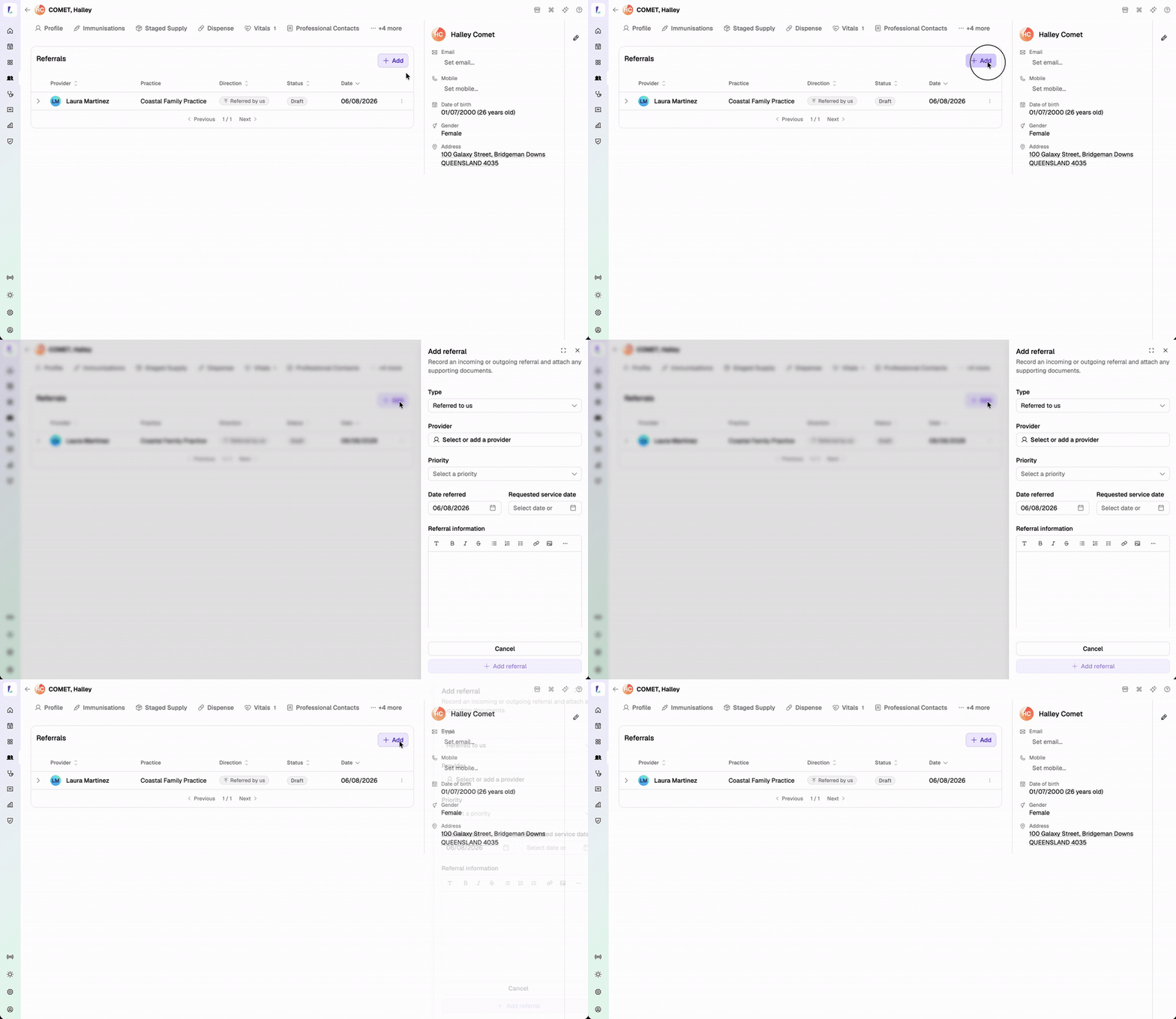
- On the patient – a Referrals tab on the customer's record lists all their referrals, and is where you add one that isn't tied to an encounter.
- On the service – a Referrals tab on a service, so you can capture a referral during an encounter. It offers the service's existing documents as one-click attachments.
- On a professional contact – a read-only list under Settings›Professional contacts showing every referral involving that provider, across patients.
Before you start
The provider on a referral comes from your professional contacts. You can pick an existing contact or add a new one without leaving the referral – so you don't need to set them up first.
Adding a referral
- Open the Referrals tab
Open the patient's record and select Referrals, or open the service and select its Referrals tab to capture one on the encounter. Choose Add referral.
- Set the direction
Choose whether the patient was Referred to us by another provider, or is being Referred by us to one.
- Choose the provider
Search your professional contacts for the provider, or add a new one on the spot. The chosen provider shows as a row you can remove and reselect.
- Fill in the details
Set the priority, the date referred (defaults to today), and the requested service date. Enter the referral information, and attach any supporting documents.
- Save
Save the referral. It starts as a Draft until you mark it as sent.
Priority
A referral's priority maps to the FHIR R4 RequestPriority value set, so the record is ready for future interoperability with other clinical systems.
| Code | Definition (FHIR R4) |
|---|---|
routine | Normal priority. |
urgent | Should be actioned promptly – higher priority than routine. |
asap | Should be actioned as soon as possible – higher priority than urgent. |
stat | Should be actioned immediately – the highest possible priority, e.g. an emergency. |
Printing the referral letter
Choose Print letter on a referral to generate a referral letter as a PDF on your site's letterhead. It carries the patient's details, the provider and practice, the priority and dates, and the referral information, and is worded for the referral's direction.
Sending an outgoing referral by email
For a referral you're sending out, choose Open in my email client. Light assembles the referral letter and its attachments into an email draft and your browser downloads it, ready to open in your own mail client.
You send it from your own mailbox – so it lands in your Sent items and any reply comes back to the pharmacy. Light currently doesn't send it on your behalf.
The draft contains patient information. Because you send it from your own mailbox, sending it securely and in line with your privacy obligations is your responsibility.
Marking a referral as sent
Once you've sent a referral, choose Mark as sent to record its status. You can Mark as draft again if you need to.
Removing an attachment
Removing an attachment from a referral removes only the link to it – the file itself stays on the patient's or service's Files tab. See Uploading a file.