Emailing and printing documents
Email any document Light generates as a PDF attachment, or print it straight from the browser without downloading it first.
Every document Light generates – immunisation statements, leave certificates, health check reports, service and patient summaries, referrals, the measurements report, staged supply agreements, and the AIR immunisation history statement – can be printed straight from the browser or emailed to the patient or another recipient as a PDF attachment.
Printing a document
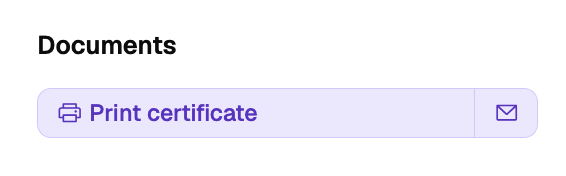
Selecting print on a generated document opens your browser's print dialog directly, with the document ready to print. It no longer arrives as a file download that you then have to find and open yourself.
The print dialog is your browser's own – choose the printer, or Save as PDF if you do want a copy on file.
Emailing a document
Wherever a document appears, there's an email option beside the print one:
- the Documents card on a completed service
- the print rail inside an encounter
- the Referrals table (Email letter)
- a staged supply plan and its row actions (Email agreement)
- the AIR immunisation history panel (Email Immunisation History Statement)
Selecting it opens the Email document dialog:
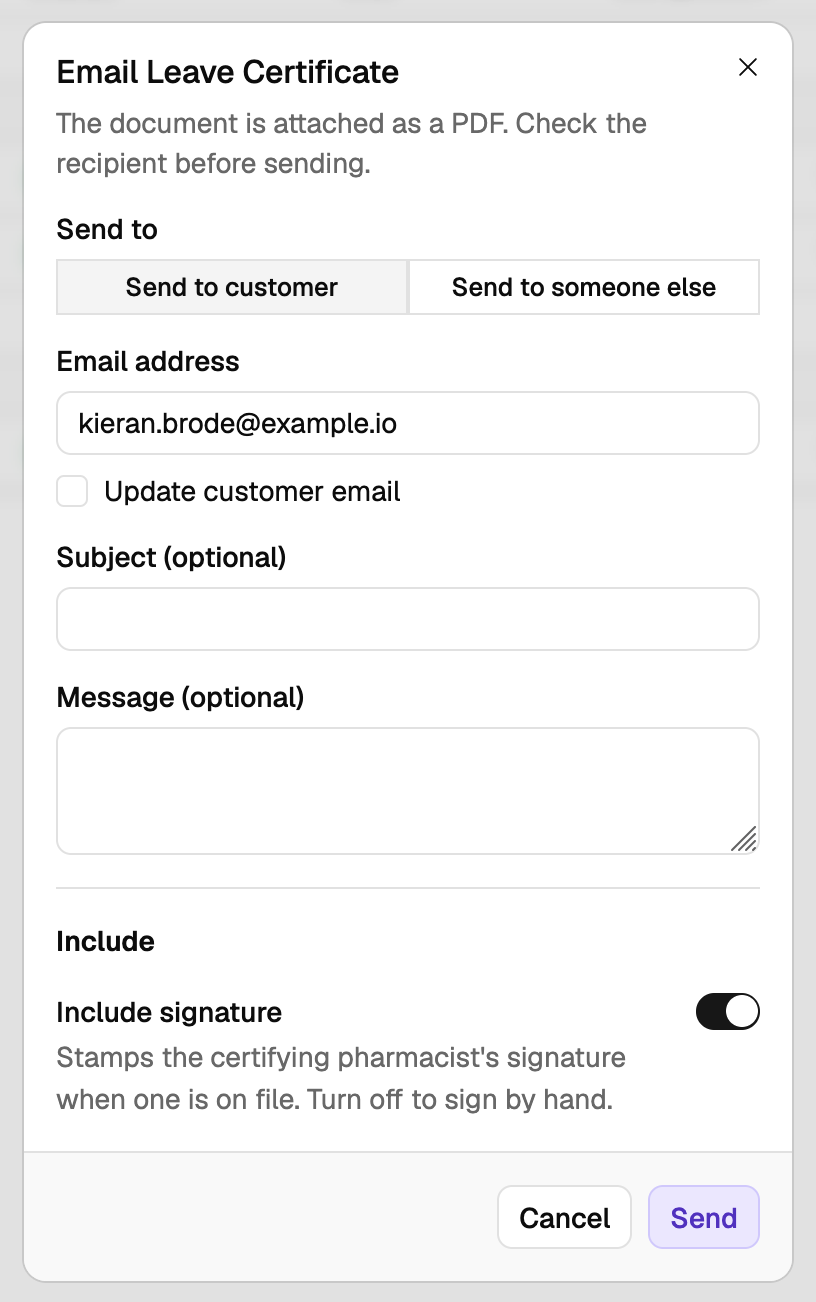
Choose the recipient. Send to customer prefills the address from the patient's record. Send to someone else lets you type a name and address – for a GP or carer, for example.
Optionally set your own subject and add a message.
Set the document's own options – signature, clinical notes, and the like – in the same dialog, so there's no separate step.
Select Send. The recipient receives a branded email with the PDF attached, and the send is recorded on the customer's (or referral's, or plan's) timeline.
The attached PDF is identical to what the print button produces, and honours the same options.
Saving a corrected address
When you send to the customer at a new or corrected address, tick Update customer email and Light updates their record after the email sends successfully. The tick is only available once the address differs from what's on file. Sending to someone else never changes the customer's saved details.
Emails carry personal health information. Confirm the address before you send, and only send to a third party where the patient has agreed.
The measurements report
When you print or email the measurements (vitals) report, a Signed by selector lets you put a nominated pharmacist's name and signature on the report instead of your own.