Recording an S3 supply encounter
Look up a purchaser, review matching history and record a supply or refusal.
Use S3 Supply Recording to record a pseudoephedrine supply encounter, including a refusal or an abandoned purchase. This area is available when S3 recording is enabled for your site. If it is missing, contact Support to check access.
- Start an encounter
Open S3 Supply Recording – the shield icon in the left toolbar, below Services – and tap Record S3 Encounter.
- Enter the purchaser's details
Select Identification Type and enter Identification Number. If the purchaser has a matching record at your site, their name and address may fill in automatically. Check those details before continuing.
Complete Given Name, Surname and Address. Select an address from the search results, or use Enter manually to enter the street address, suburb, postcode and state. Both identification and name/address details are needed for the history lookup.
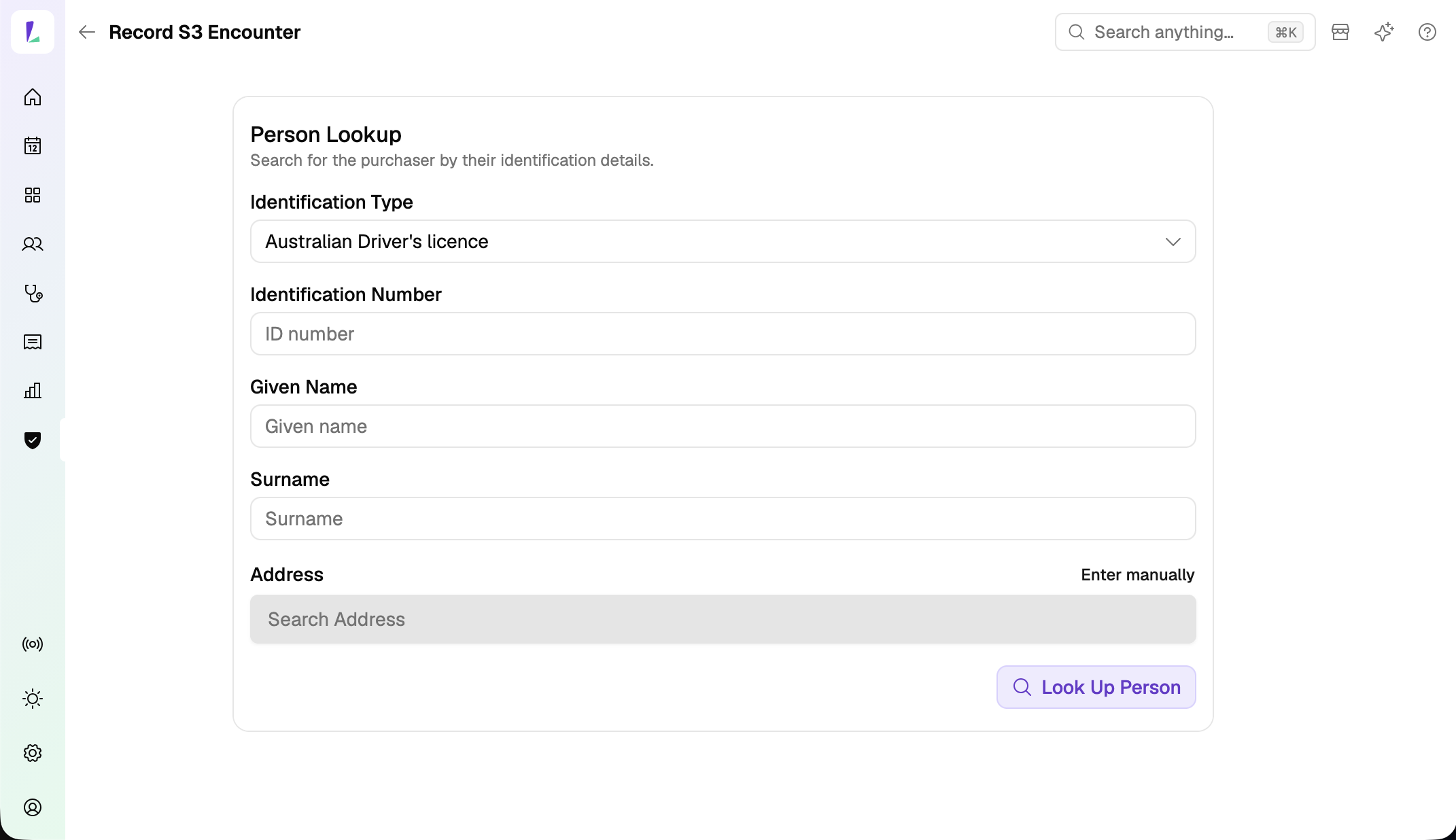
Purchaser details, entered before the history lookup. - Look up and review history
Tap Look Up Person. Review Encounter History, including the product, date, site, supplier and recorded outcome. Use Show all if more records are available.
The lookup can include matching records from other Light/Checkpoint sites. If no history appears, check the details you entered; a different ID, name or address can prevent a match. No matching history does not establish that the purchaser has never bought the product before.
To change the purchaser details after lookup, tap Reset and look up the person again. This also clears any unsaved encounter details.
- Complete the supply details
Enter Pharmacist Name where shown. You can select a site user or type a name.
Search Product Name by name or barcode and select the correct product. A single barcode match may be selected automatically. If the product is missing, choose Add custom product, complete its details and save it. The new product is selected for this encounter.
You must select or create a product, including when recording Denied or Abandoned. Typing a name without selecting a result is not enough.
Check Date of Supply. Complete Directions for Use where required. Tap Show additional fields to enter optional information such as a Script Identifier. See S3 recording fields for the requirements shown for your site's state or territory.
- Choose the outcome and add notes
Check Supply Outcome, which starts as Supplied. Choose the outcome that occurred: Supplied, Supplied with Condition, Denied, Abandoned or Returned.
Use Notes for the reason for a refusal, a condition on supply or other relevant details. Notes are optional in the form, including for Denied.
- Complete consumer details where applicable
Leave Purchaser is the consumer selected if the purchaser will use the product. Otherwise, clear it and enter the consumer's name and address. Where consumer fields are optional, use Show additional fields to reveal them.
- Save the encounter
Review the details and tap Record S3 Encounter. After a successful save, you return to the encounters list.
If a product selection error appears, select a product from the results or add a custom product, then submit again. If you cancel or leave with unsaved encounter changes, Light asks whether to discard them.
To correct a saved encounter, see Correcting an S3 record.