Correcting an S3 record
Find a saved S3 encounter, change its details or delete an incorrect record.
You can edit or delete an S3 encounter recorded at your site. The purchaser's name, identification and address cannot be changed on a saved encounter; contact Support if those details need correction.
- Find the record
Open S3 Supply Recording. On Encounters, use Search to find records by purchaser name. Use the page controls to browse further results.
Open the record, or choose Edit from its menu. Check the purchaser, product and date to make sure you have the right encounter.
- Correct the encounter details
Change the supply details, pharmacist, outcome or notes as needed. If you change the product, select a result or add a custom product. If Light asks you to select a product before saving other changes, choose the matching result or add a custom product. Use Show additional fields for optional fields.
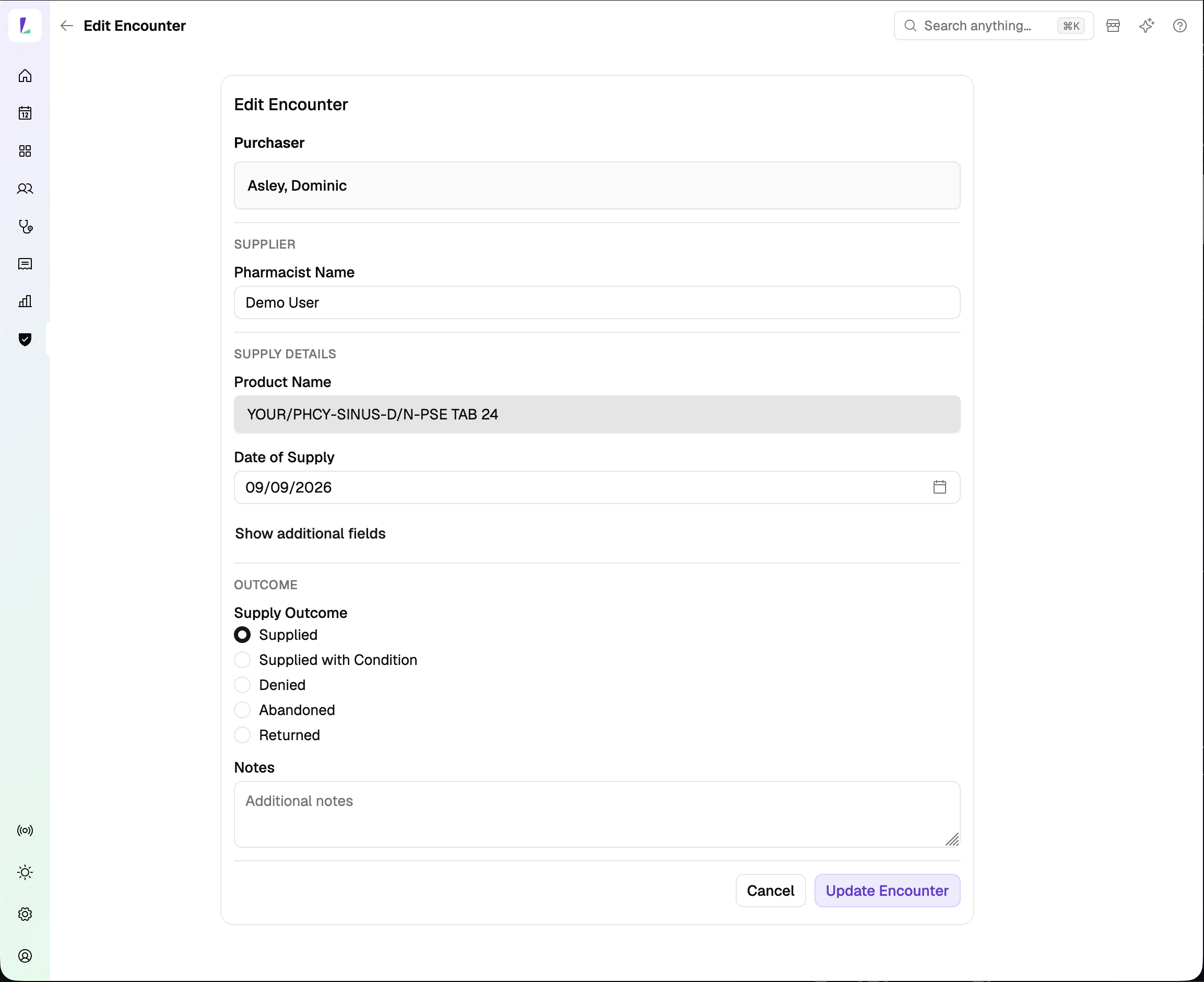
The purchaser stays fixed; the supply details and outcome can change. - Save the correction
Tap Update Encounter, then confirm the changes. You return to the encounters list after the update succeeds. Use Cancel to leave without saving; Light asks before discarding unsaved changes.
Deleting an incorrect record
From the encounter's menu on the list, choose Delete. Enter the reason and confirm. The encounter is removed from the normal list and purchaser history. There is no restore action in this screen.
Deletion retains the underlying record and deletion details; it does not erase the record from storage.