Managing products for S3 supply recording
Find products for an encounter and maintain your site's custom products.
Use the Products tab in S3 Supply Recording to maintain custom products for your site. When recording an encounter, product search includes both the standard catalogue and your site's custom products.
Find a product during recording
In Product Name, search by name or barcode and select the matching product. Check its strength, quantity and form before choosing it. You must select a product before saving the encounter; typing a name alone doesn't complete the selection.
If you can't find a match, tap Add custom product in the search results. Complete the Add Product sheet using the steps below. The name or barcode you searched for is filled in for you.
Add a custom product
- Open Add Product
Open S3 Supply Recording – Products and tap Add Product. If you opened the sheet during an encounter, continue below.
This tab lists your site's custom products. An empty list doesn't prevent you from selecting standard catalogue products during recording.
- Enter the product details
Enter Product Name. Add Form, Strength, Quantity and Barcode where available – these fields are optional.
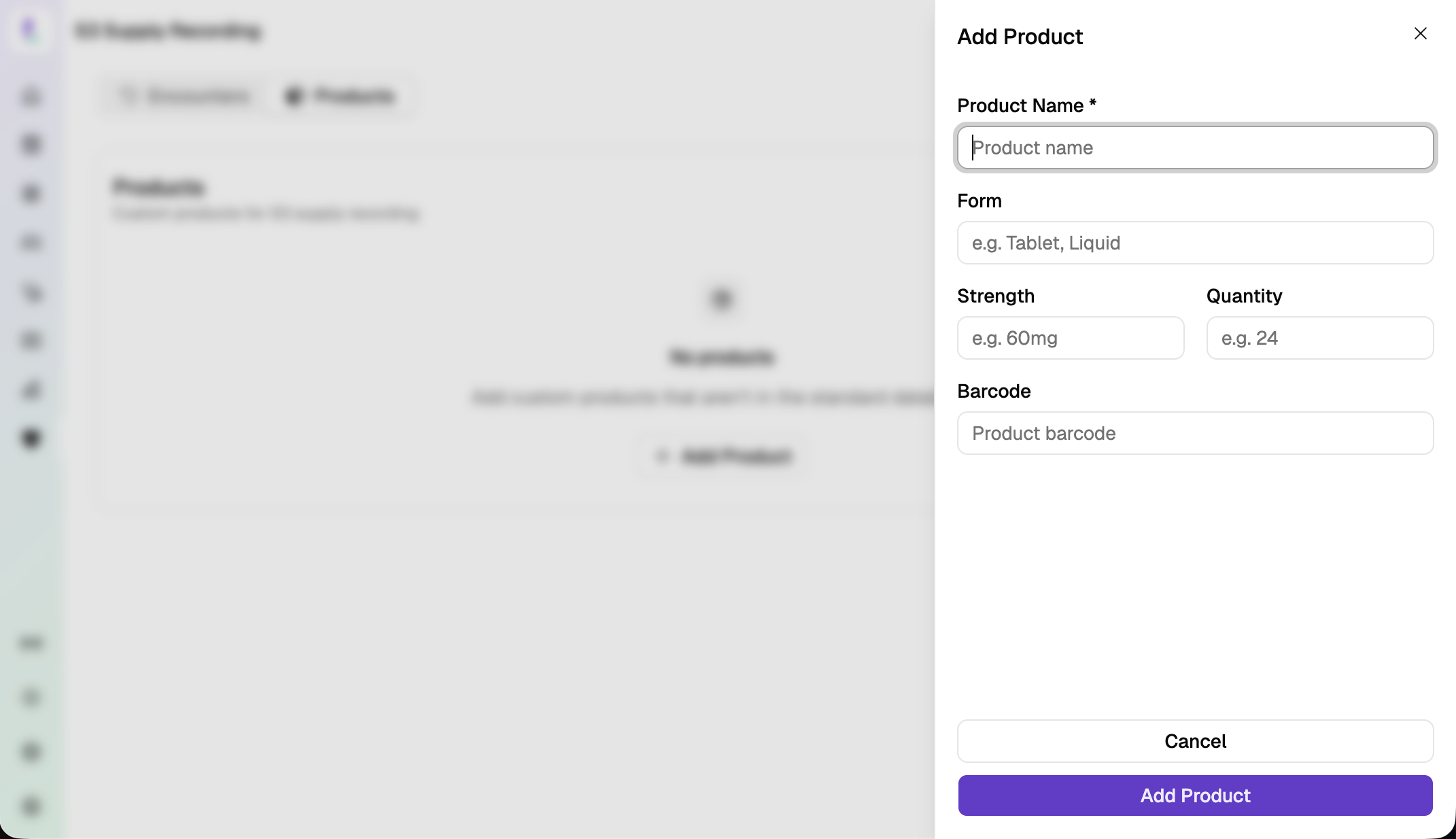
Only Product Name is required. - Save the product
Tap Add Product. The product is available for future encounters at your site. If you added it during recording, it is selected for the current encounter too.
Edit or remove a custom product
On Products, open the product's menu:
- Choose Edit, change the details, then tap Update Product.
- Choose Remove, enter a Reason, then tap Remove to confirm.
Editing or removing a custom product preserves existing encounters and their recorded product names. To change the product on a past encounter, see Correcting a record.