Completing a MedsCheck or Diabetes MedsCheck
Add a MedsCheck or Diabetes MedsCheck to a patient, reconcile their medicines from dispense history or add them manually, produce the Medication Profile Review and Action Plan, then submit the claim.
MedsCheck and Diabetes MedsCheck are in-pharmacy medication review services – a one-on-one discussion between a pharmacist and patient to help them understand and get the most from their medicines. Diabetes MedsCheck builds on the same format with a focus on type 2 diabetes. Both are delivered face-to-face and claimed through the Pharmacy Programs Administrator (PPA).
In Light, you add the service to a patient, work through the encounter, and produce the patient's Medication Profile Review and Action Plan.
Program rules and forms
You can record MedsCheck and Diabetes MedsCheck services in Light whether or not you intend to claim for them. Claiming has its own program requirements – the PPA Program Rules and the PSA Guidelines set them out:
- MedsCheck and Diabetes MedsCheck Program Rules
- PSA MedsCheck Guidelines
- MedsCheck program overview (PPA)
Written patient consent is required before the service is provided. The consent forms and the service checklist are here:
- MedsCheck Patient Information and Consent · low-ink version
- Diabetes MedsCheck Patient Information and Consent · low-ink version
- MedsCheck and Diabetes MedsCheck Service Checklist
You can attach hard-copy forms to the encounter in Light. Record retention periods are set out in the Program Rules.
Starting a MedsCheck
There are two ways to start a MedsCheck or Diabetes MedsCheck service:
- From Services – go to Services, select Add, choose MedsCheck or Diabetes MedsCheck*, then select an existing customer or add a new one.
- From the customer – open the customer's record, select Services, then choose Add service and select MedsCheck or Diabetes MedsCheck*.
If required, select a booking date and time, then create the service. Once created, open the encounter to complete the review.
* Note: The specific name of the services may depend on your site or group's configuration. For example, you may instead find the service under Medication Review or Medication Reconciliation.
Completing the encounter
After creating the service, open the encounter and work through the review, which includes:
- Eligibility
- Consent
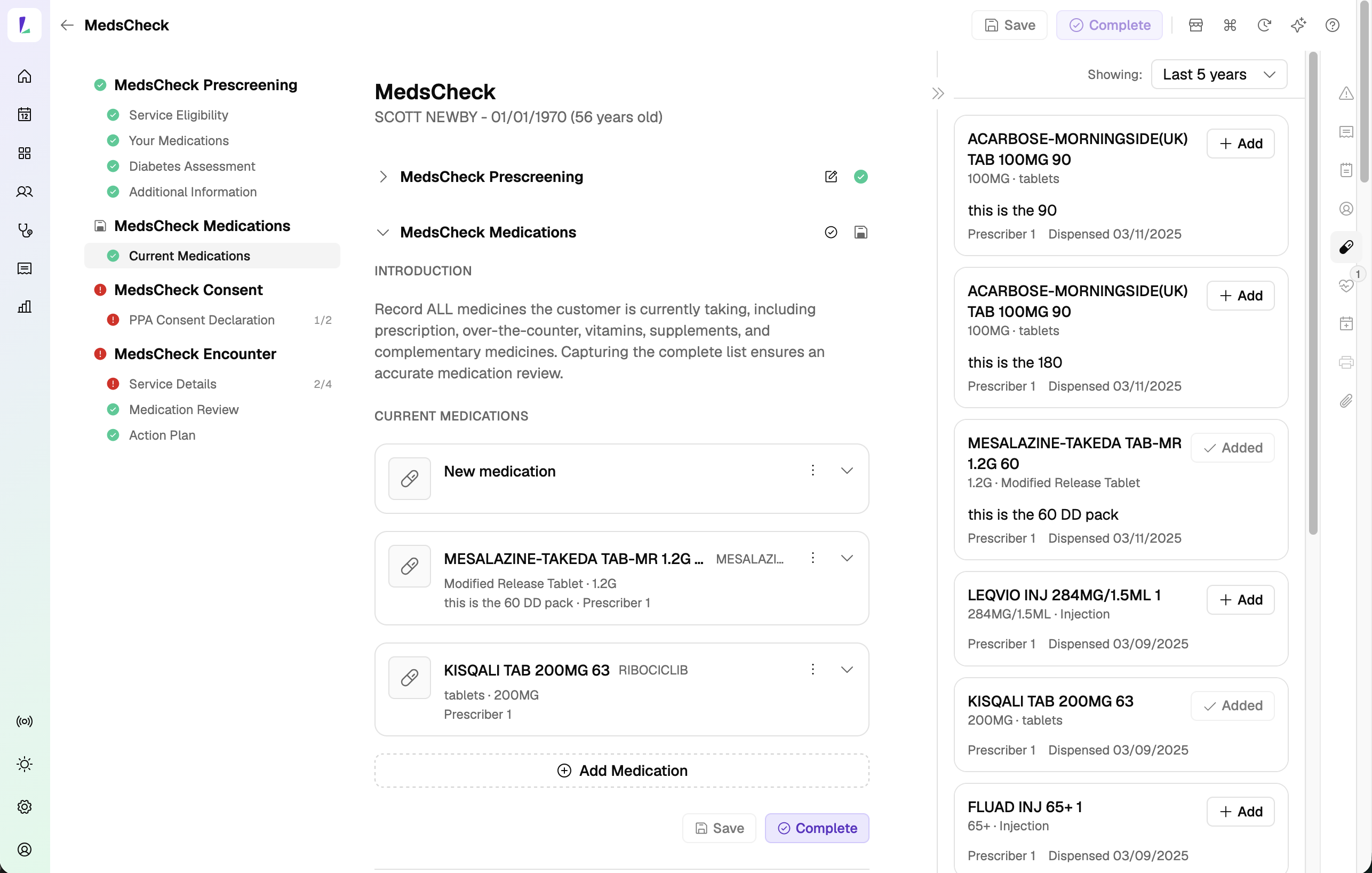
- Medication – add medicines from the patient's dispense history or enter them manually, then record any identified medication-related issues. You can add more than one issue per medicine
- Medication Review – record the patient's regular GP and any other healthcare providers, and note any medicines they've ceased
- Action Plan
The GP, other healthcare providers, and ceased medicines carry through to the printed Medication Profile Review and Action Plan.
To add medicines from dispense history, the patient must be linked to Dispense. If the Dispense panel isn't available, open the customer's Dispense tab and select Link to dispense. Once the patient is linked, the panel becomes available. See Connecting your dispense system.
Should you want to record clinical measurements as part of the review – blood glucose (BGL), HbA1c, cholesterol, and others – you can do that in the encounter's Vitals panel. See Recording vitals.
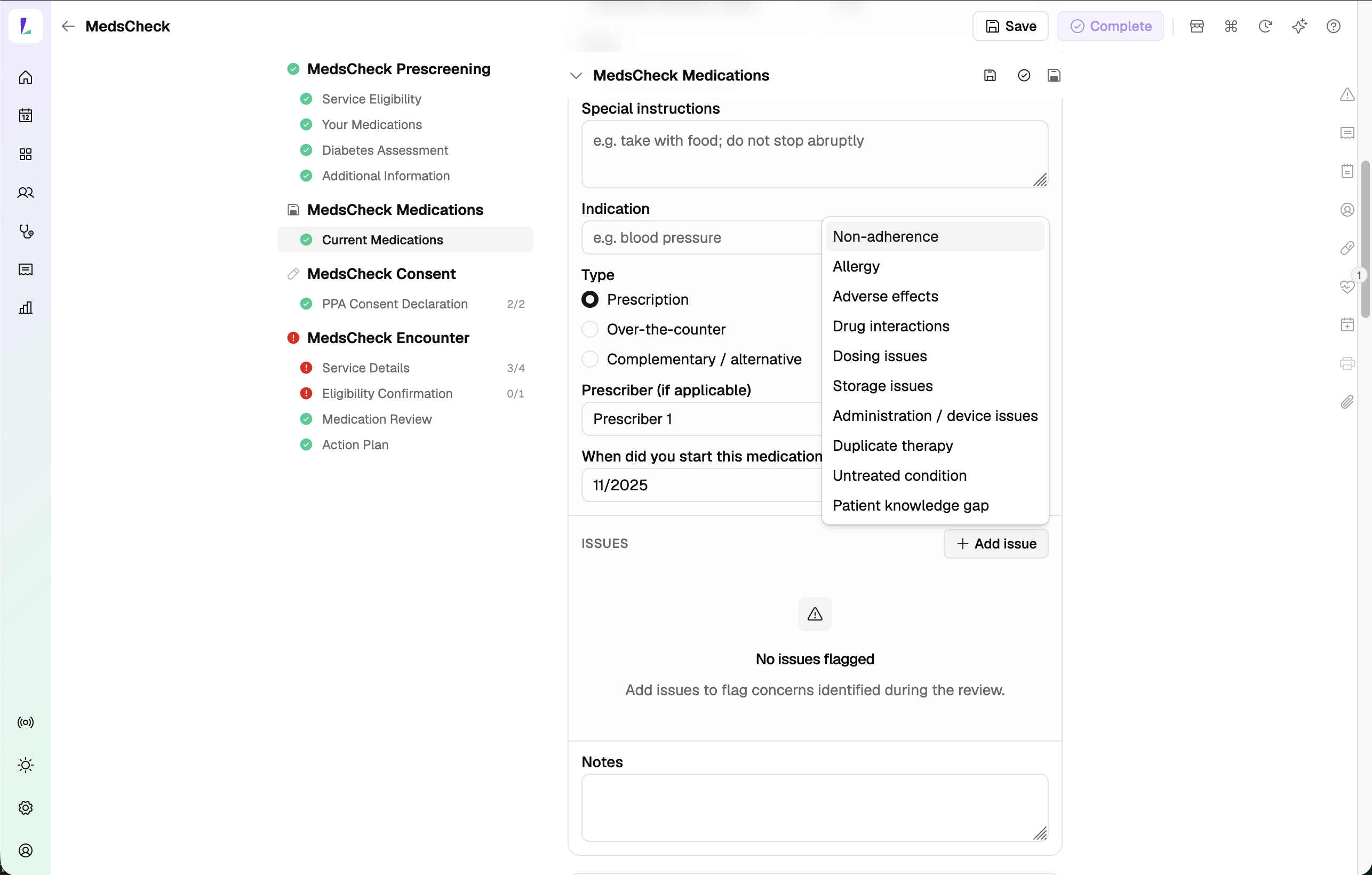
In the Action Plan, select Reconcile flagged issues to bring each medication-related issue you recorded in the Medication step into the Action Plan as its own row to action – so you don't have to re-enter them. Add any further recommendations alongside them.
Once the encounter is complete, you can print the Medication Profile Review and Action Plan.
Claiming
Once the encounter is completed, Light assesses the service against the claiming rules and displays it in Claims. You submit and declare each MedsCheck or Diabetes MedsCheck review individually.
To see claim status for all MedsCheck and Diabetes MedsCheck reviews, go to the Claims screen, or check an individual review from its service overview.
Reporting on completed services
To see how many MedsCheck and Diabetes MedsCheck encounters were completed over a given period, use the Service Encounter report.
Coming soon: automatic PPA claiming. Today Light submits your MedsCheck claims to PPA, but you submit each completed review yourself, one at a time. When automatic claiming is available, you'll attest to it under Programs and completed reviews are then claimed automatically – with no manual submit step. Drug images are also planned for a future update, once our drug image database integration is complete.
Recording responsibility
This article explains how to record this encounter in Light. Practitioners remain responsible for delivering the service in accordance with applicable clinical, program and jurisdictional requirements and for maintaining a complete and auditable record. See Recording Encounters in Light.