Recording an integrative medicine consultation
Review the patient's questionnaire answers and product ranking, record your case notes and treatment plan, schedule a follow-up, and print a practitioner prescription for the patient or their GP.
This integrative medicine consult uses a structured questionnaire covering the patient's stress, mood and fatigue, pain, digestive health, and immune health, and gives you an encounter to record your case notes, the products you're recommending, and a treatment plan. When you're done, you can print a practitioner prescription for the patient or their GP.
Integrative medicine consultations are available to TerryWhite Chemmart sites, enabled by request from TerryWhite Chemmart Head Office. Please direct any questions about the questionnaire or its clinical content to TerryWhite Chemmart.
This consultation should be delivered by a pharmacist trained in natural medicines (an integrative pharmacist).
Starting the service
There are three ways to start:
- From Services – go to Services, select Add, choose the integrative consultation service, then select an existing customer or add a new one.
- From the customer – open the customer's record, select Services, then choose Add service and select the integrative consultation service.
- From a booking – if the patient booked in for the service, start the encounter from their booking.
The questionnaire
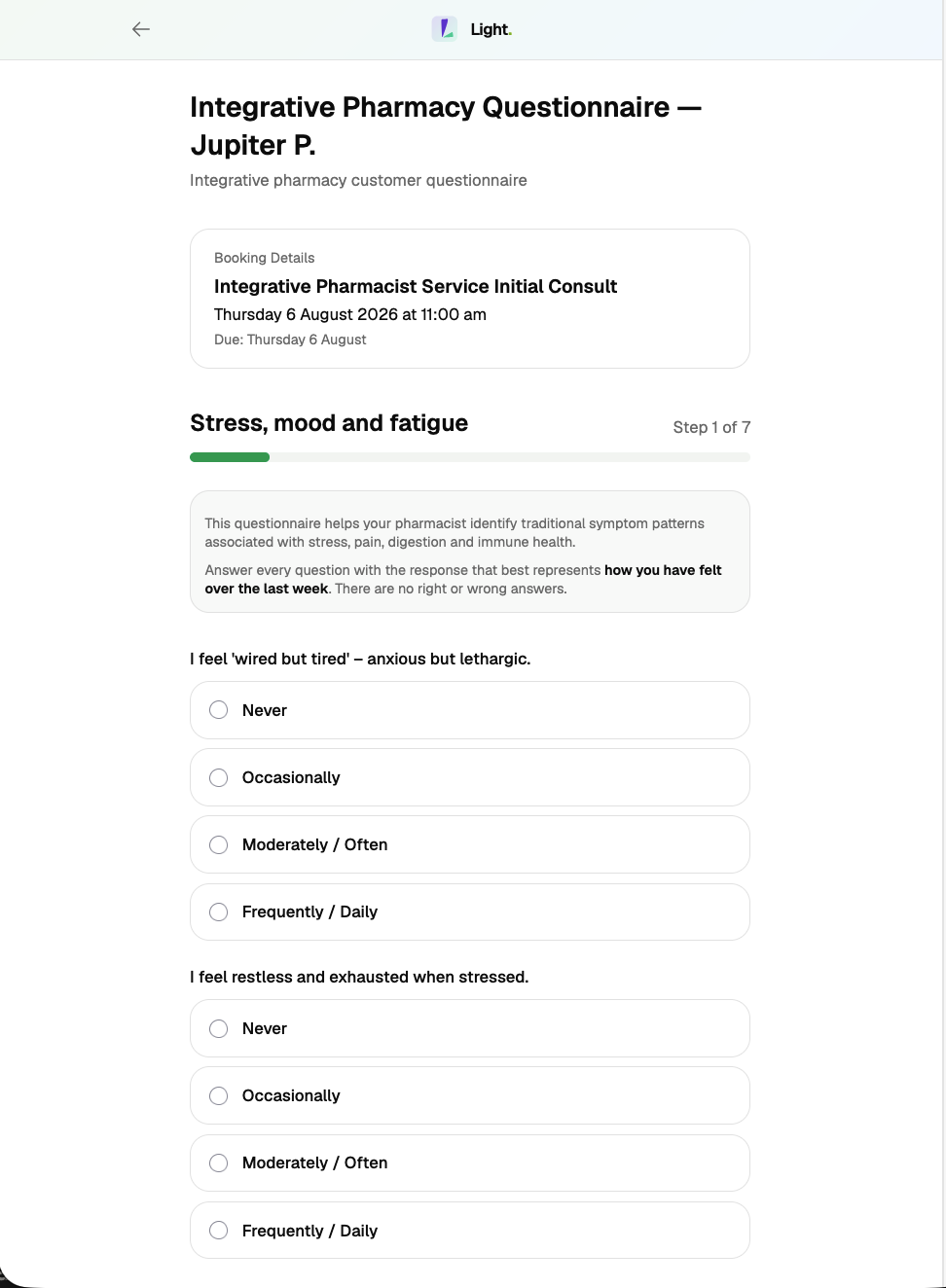
The consultation is guided by a structured questionnaire covering four health areas – Stress, Mood and Fatigue, Pain, Digestive Health, and Immune Health. The immune-health questions appear when the patient reports immune symptoms. The patient can complete the questionnaire themselves, or you can complete it with them – see Sending a form to a kiosk.
Working alongside the responses
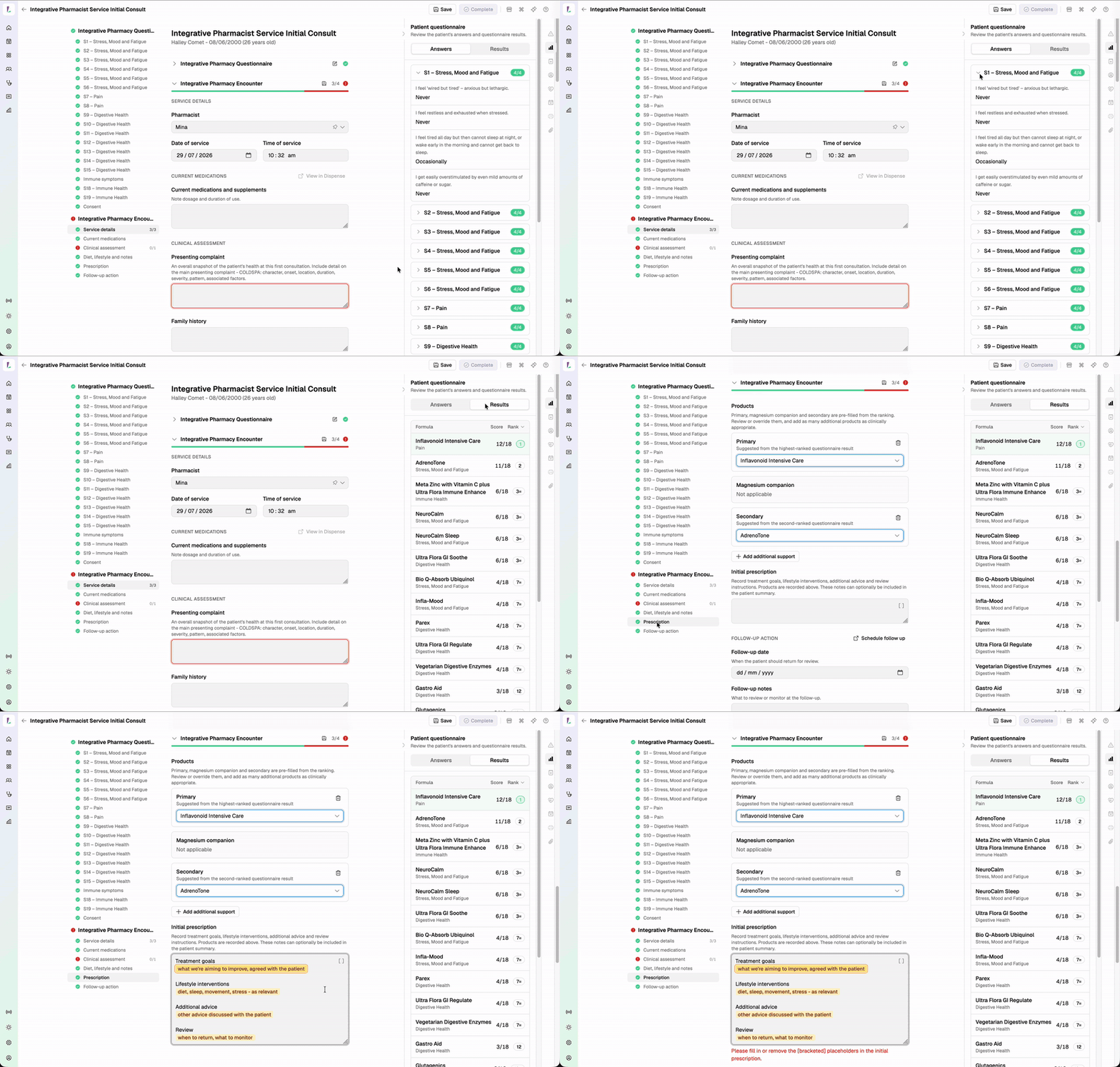
Open the encounter and the Patient questionnaire panel sits on the right, with two views:
- Answers – the patient's responses.
- Results – each product scored out of 18 and ranked, with its health area. Tied ranks show with an equals sign, such as 3=.
When the top scores tie
The ranking suggests a primary product from the highest-scoring area. When two or more areas tie for the top score, Light doesn't pre-fill a primary – the ranking marks the tied positions (for example, 1=) and shows an alert: "Top scores are equal – choose the primary." Record the primary you've chosen.
Recording the consultation
Record the patient's clinical picture in the encounter's case-note fields:
- Presenting complaint – a snapshot of the patient's health at this first consultation.
- Current medications and supplements and Family history.
- A note for each health area – Gastrointestinal and digestive health, Stress, mood and fatigue, Pain, inflammation and musculoskeletal, and Immune health.
- Lifestyle context – Diet, Lifestyle and occupation, and Stress management.
- Further notes for anything else.
Then record what you're recommending:
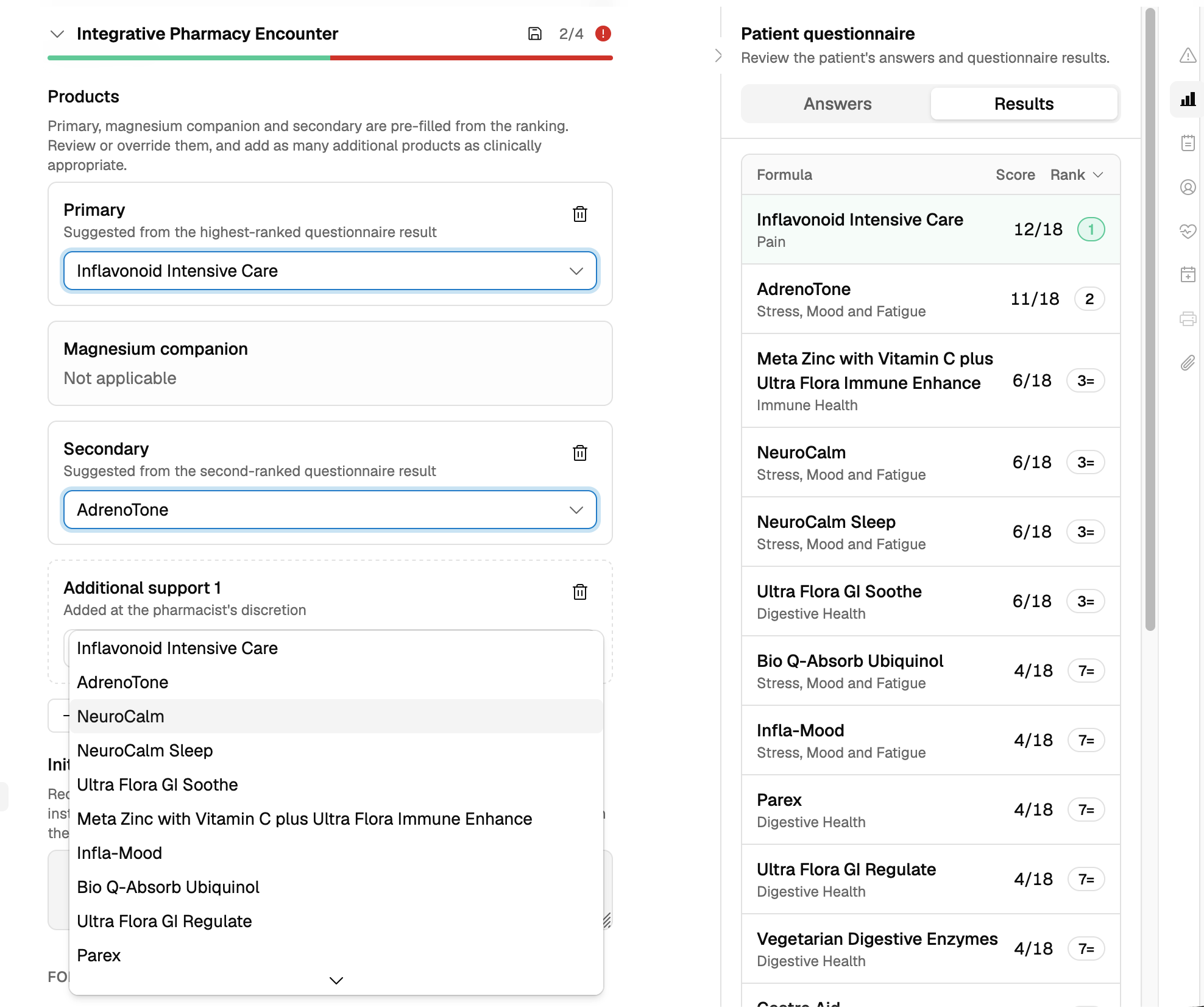
- Products – the products you're recommending. The primary, magnesium companion, and secondary are pre-filled from the ranking; review or override them, and add any further products.
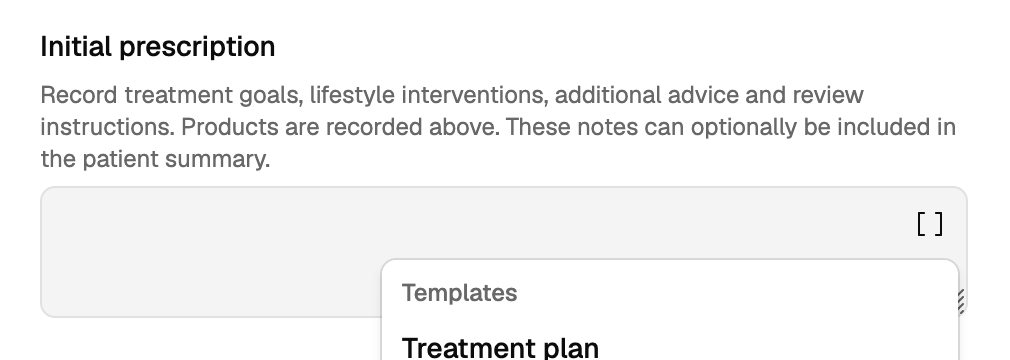
- Initial prescription – prose notes on treatment goals, lifestyle interventions, advice, and review. You can use the Treatment plan template if you wish. These notes can optionally be included in the patient summary.
If there's more you'd like to capture than the structured fields hold, add it to Further notes, the Notes panel on the right, or as an attachment.
Scheduling a follow-up
You can record the follow-up two ways:
- In the encounter – record a Follow-up date and Follow-up notes against the consultation, without leaving it.
- As a booking – tap Schedule follow-up to open the New Booking sheet, pre-filled with the patient, and book their next appointment.
Printing the practitioner prescription
When the encounter is complete, use Print Practitioner Prescription to produce the prescription – with your signature – to give the patient or send to their GP. When you print, you can choose whether to include the initial prescription notes.
Recording responsibility
This article explains how to record this encounter in Light. Practitioners remain responsible for delivering the service in accordance with applicable clinical, program and jurisdictional requirements and for maintaining a complete and auditable record. See Recording Encounters in Light.