Merging duplicate patient records
Merge two records for the same patient, choosing which details to keep.
Where the same patient has ended up on two records, merge them into one. The patient's history moves to the record you keep.
Merging patient records is feature flagged and switched on for pilot stores only. To find out more or request access, contact Support.
Merging two records
Merging can't be undone.
- Select the two records
On Customers, open the Merge tab. Search for and select one of the duplicate records in each customer field. Light shows the two records side by side.
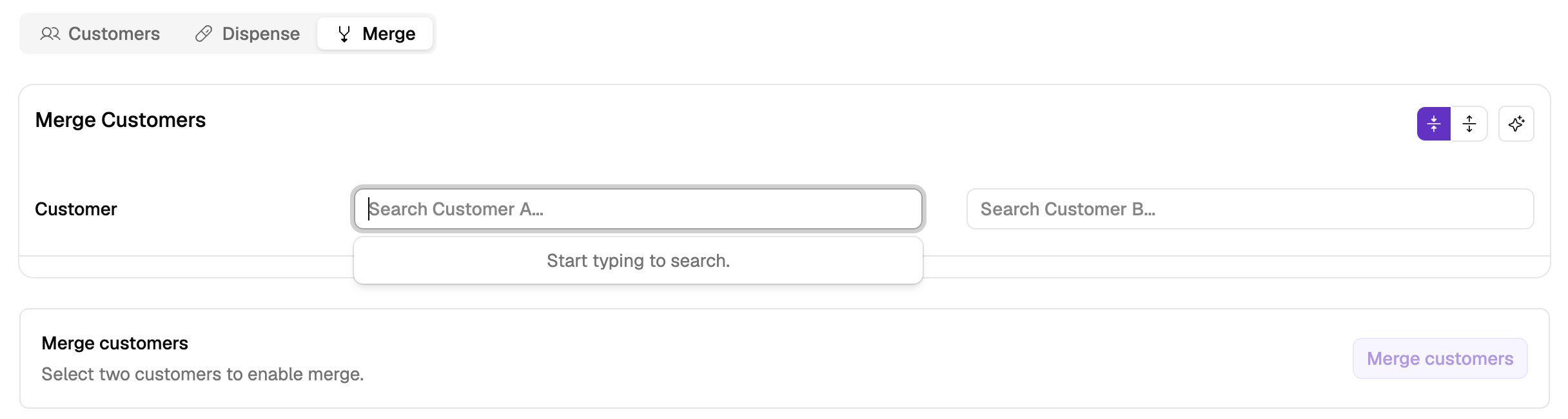
Open the Merge tab, then choose one of the duplicate records in each customer field. - Check the target
The Target is the record that survives. Use Swap target customer to switch which one it is.
- Choose the details to keep
Light takes the target's values where it can. Where the two records disagree, choose the value to keep.
Tap Prefer target values to keep the target's value wherever one exists, and use the duplicate's value only when the target is blank and the choice is unambiguous.
Empty properties and items are hidden by default. Tap Show all properties and items to include them, or Hide empty properties and items to return to the compact view.
The Bookings and Services item count includes related records such as completed forms and claims. It may therefore be higher than the number of bookings and services shown on the patient's record.
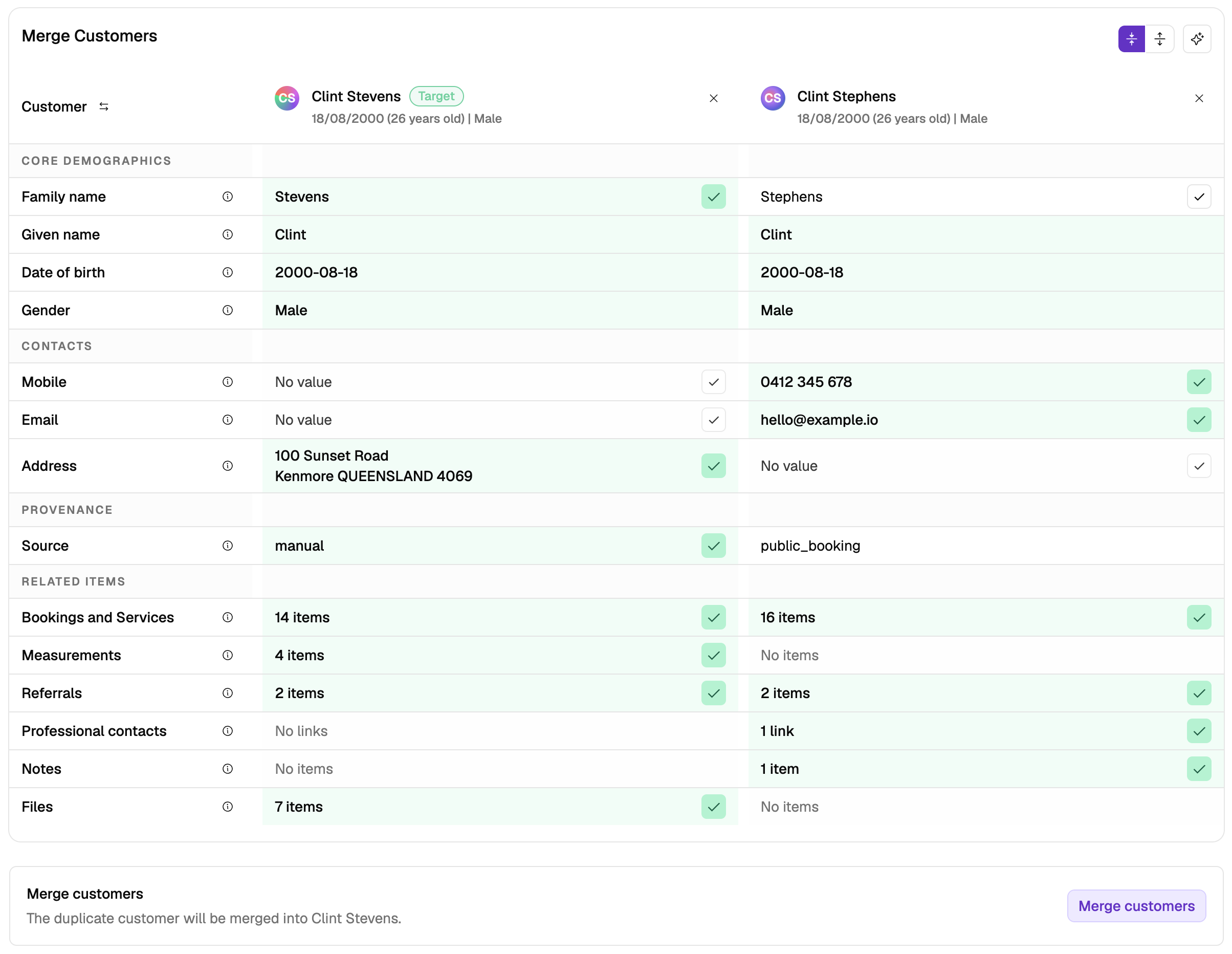
Choose the target record and the details to keep from each duplicate. - Clear anything blocking the merge
If Merge customers is disabled, follow the message below the comparison. Keep exactly two customers selected and choose a value for every required field. Warnings such as Different IHI values don't block the merge on their own.
- Merge
Tap Merge customers, review the confirmation, then confirm.
More than two records
Light merges two records at a time. Where the same patient is on three or more, merge two of them, then merge the result with the next.
Additional features will be available in the future to support merging more than two records at once and identifying possible duplicates.
What moves across
Bookings, services, claims, orders, measurements, referrals, staged supply, professional contacts, notes and files move to the target record. Customer details already recorded on claims and orders remain unchanged.
When the records have different IHIs
Where the records have different IHIs, Light shows Different IHI values. You can still continue with the merge. Light revalidates the target record's IHI against the details chosen for the merged record.
If the IHI is validated, the merge completes and that IHI remains assigned. The other record's IHI is kept in the customer's IHI history.
If the IHI can't be validated, Light rolls back the merge and offers Merge without IHI. Choosing this completes the merge with no IHI assigned, so you can add the correct one afterwards – see Looking up a patient's IHI.