Looking up a patient's IHI
Search the HI Service for a patient's Individual Healthcare Identifier and keep it current.
An IHI (Individual Healthcare Identifier) is the number the HI Service holds for a patient. Record it on the patient's record to identify them consistently across healthcare.
Healthcare Identifiers must be connected first. That includes linking Oexa as your pharmacy's CSP in HPOS, then validating and saving the site HPI-O in Light. See Connecting Healthcare Identifiers.
Healthcare Identifiers is feature flagged and switched on for pilot stores only. To find out more or request access, contact Support.
Searching for an IHI
- Open the patient's IHI details
Open the patient's record, select the IHI tab, then Add IHI.
- Choose a search type
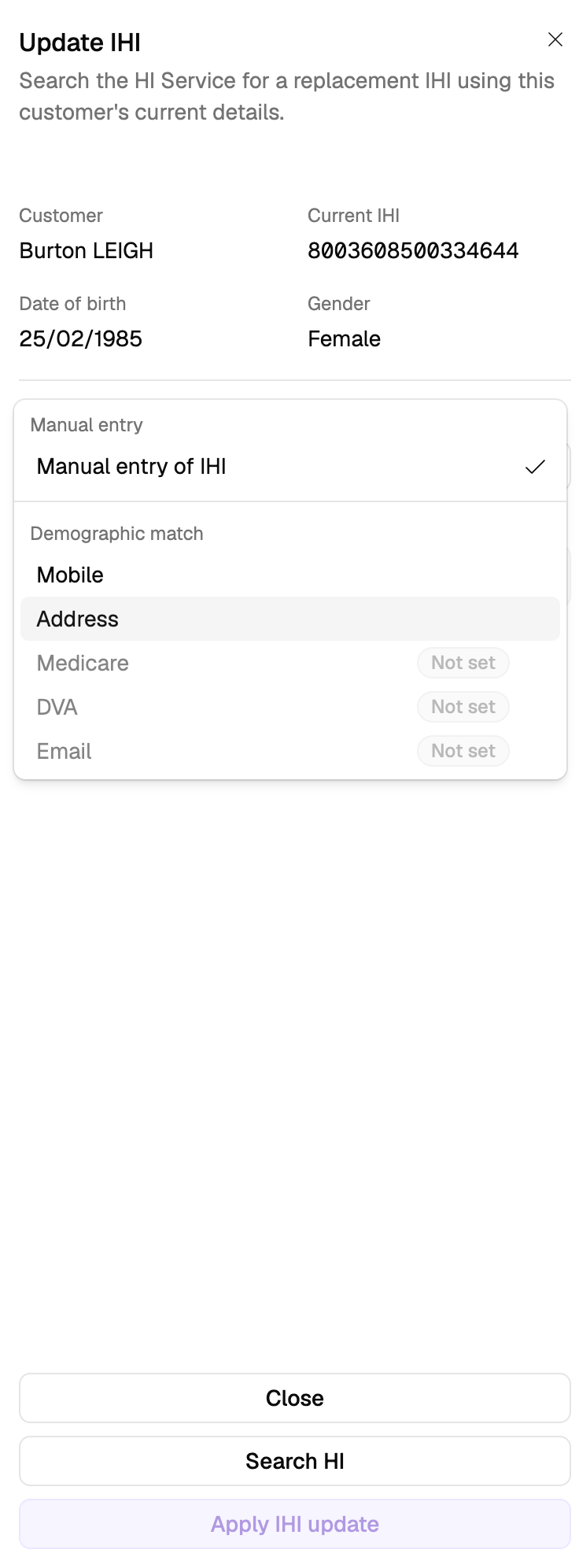
Search on the patient's Medicare card, DVA file number, Mobile, Email or Address.
Each search uses the details already on the patient. Where a detail is missing, Light tells you – add it to the patient record first. Email and address searches aren't available for one-name patients.
- Search
Select Search HI. When the HI Service returns a match, the IHI is added to the patient.
To type a number in instead, choose Manual entry of IHI, enter or paste the IHI, then tap Search HI. When the match returns, tap Add IHI.
Bright idea
The IHI field shows the fixed 800360 prefix separately. You can still paste the full 16-digit IHI. Light recognises the prefix and fills the remaining 10 digits.
When another patient already has an IHI
If the IHI returned by the HI Service is already on another patient record, Light tells you before it's applied and lists the possible matching customers. That usually means the same patient is on two records – see Merging duplicate patient records.
Keeping the IHI current
The IHI page shows the number with its Number status and Record status. From Actions:
- Revalidate IHI – check it with the HI Service.
- Update IHI – replace it with another number. The previous one moves to the patient's IHI history.
- Clear IHI – remove it from the patient.
Where a revalidation returns something that needs attention – a retired number, or a change of record status – the patient is flagged IHI needs review. Review the detail, then Dismiss the warning.
Automatic lookup
Where automatic lookup is switched on for your pharmacy, Light searches for a patient's IHI on its own – when a patient books, when dispense history arrives, or when you record an AIR encounter. Anything it finds appears on the IHI page the same way.