Bookings report
See booking activity by service, split by status, over a date range.
The Bookings report summarises booking activity across your services over a given period. Use it to see what your diary actually ran — how many turned up, how many dropped off.
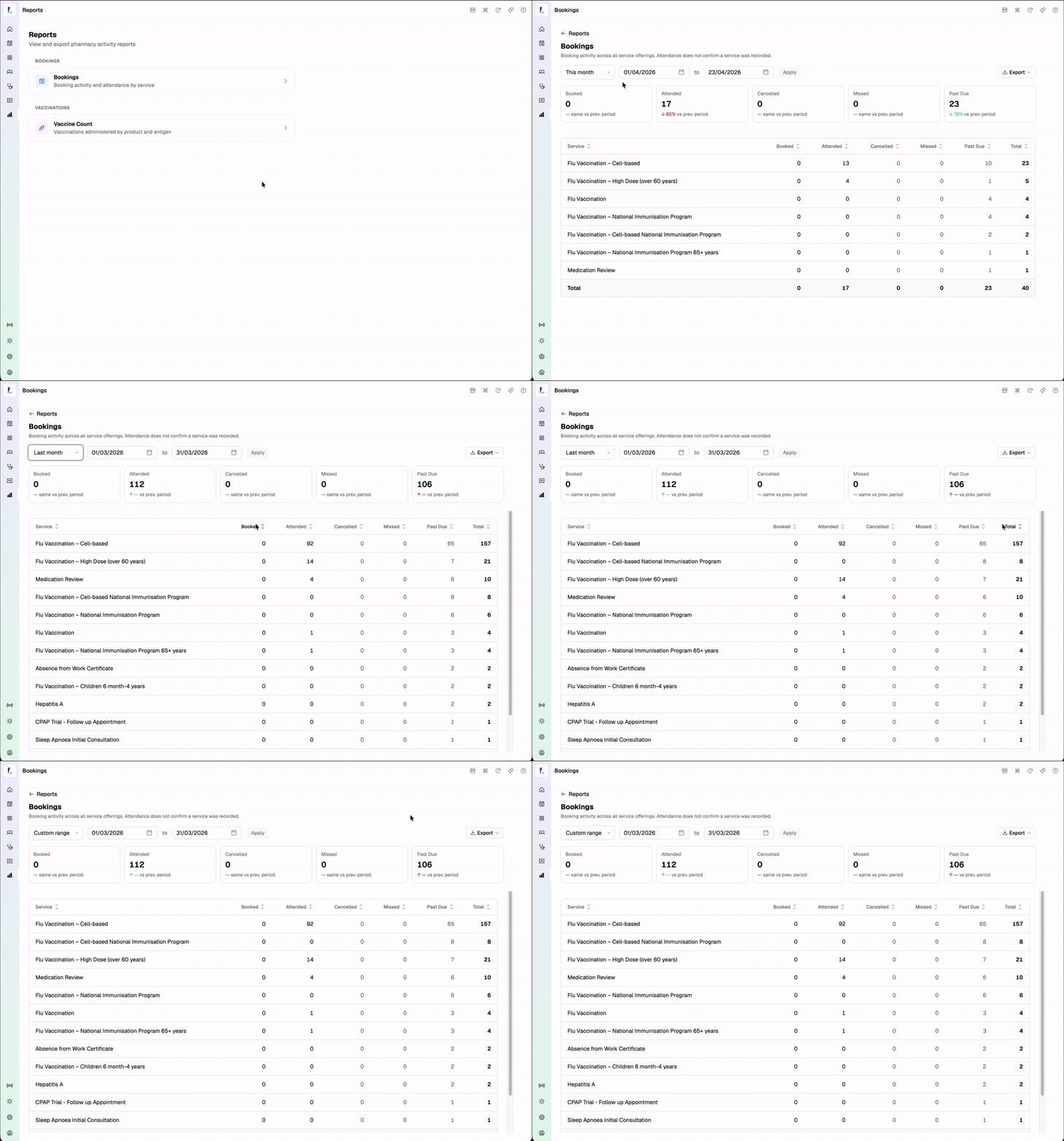
The report is historical only — it counts bookings whose appointment time has already passed. Anything still in the future doesn't appear yet, and the date range is automatically capped at today.
How the numbers are grouped
Each row is a service (flu vaccine, MedsCheck, DAA review, and so on). The columns split the bookings by status:
- Attended — customer arrived and was seen
- Cancelled — cancelled before the appointment
- Missed — marked as a no-show
- Past Due — the appointment time has passed without attendance being marked
A booking is counted against the service it was booked for, on the day it was scheduled. See Booking statuses for what each status means in the system.
Changing the date range
Use the date controls at the top — This week, Last week, This month, Last month, or Custom range. See Viewing reports for the shared controls.
Exporting
Tap Export for a CSV (one row per service with the status columns) or a PDF (the grouped view, ready to print or email). Exports reflect the current date range.
Attended means someone marked the booking as attended — it does not confirm a service was recorded or a claim was lodged. Use the Services list or Claims page for the downstream view.
Common uses
- Weekly no-show review — set the range to Last week and look at the Missed and Past Due columns to spot services with attendance issues
- Service demand — compare Attended totals across services to see what's being delivered
- Monthly activity snapshot — set the range to Last month and export as PDF for a record of what ran