Using the Dashboard Inbox
Work through outstanding items – starting with claiming actions like rejected and failed claims – from one place, ranked by urgency.
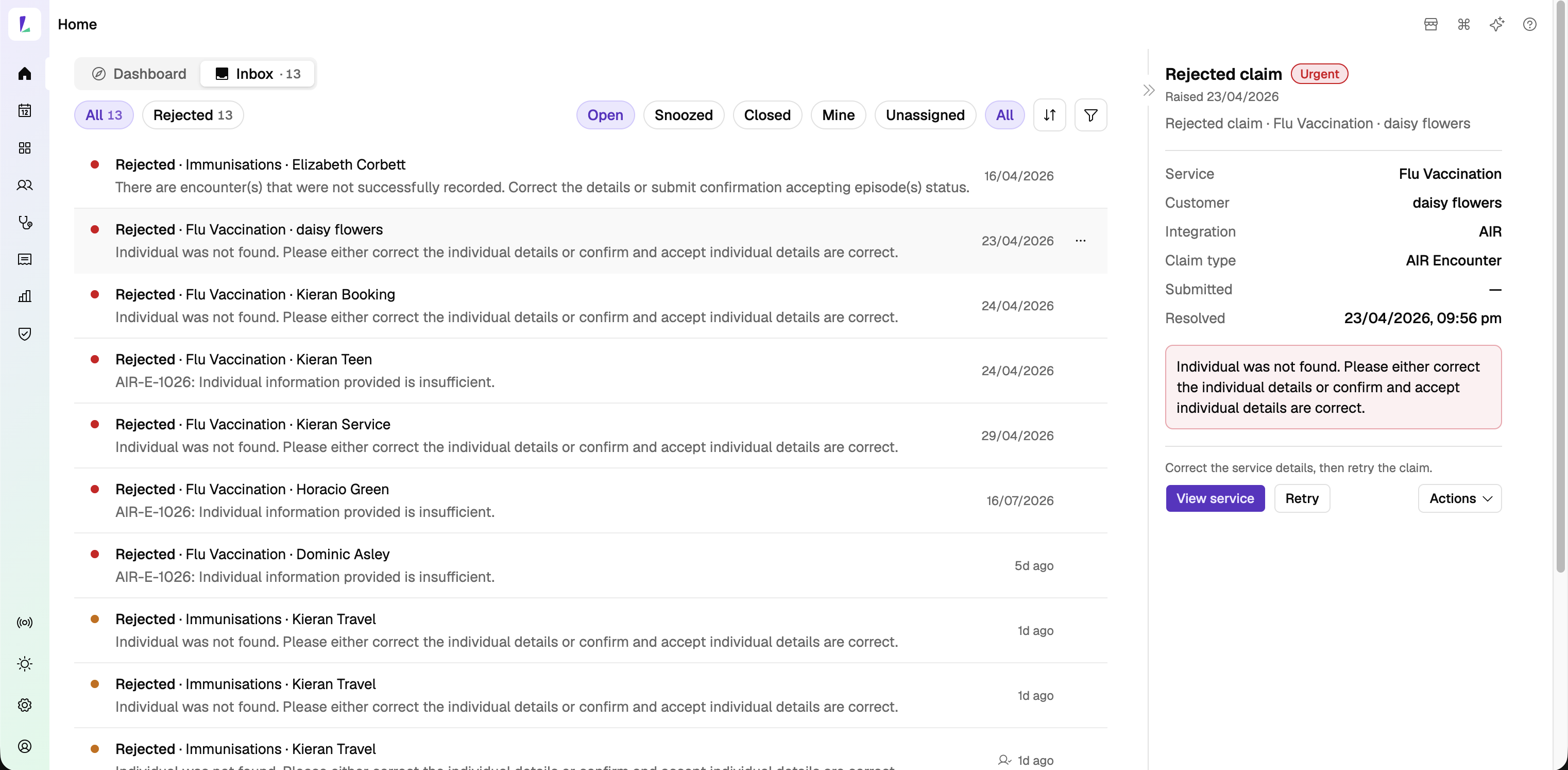
The Inbox is a tab on your Home screen, next to the Dashboard. It brings outstanding items into one place to work through, so the things that need your attention aren't scattered across the app. A count on the tab shows how many are open.
What's in it
The Inbox starts with claiming actions – the items that need a person to act before a claim can progress:
- Rejected – a claim came back rejected and needs correcting and re-submitting.
- Failed – a claim didn't go through and needs attention.
Each row reads type · service · customer – for example, Rejected · Flu Vaccination · daisy flowers – with the reason underneath and the date on the right. Over time the Inbox will grow to cover more than claiming – for example, booking setup issues and follow-up tasks from services.
Reading the urgency dots
Items are ranked by urgency, shown as a coloured dot at the start of each row – like a traffic light:
- Urgent – a filled red dot. Deal with these first.
- Attention – a filled amber dot.
- Opportunity – a hollow dot.
- FYI – no dot, shown in muted text. Lowest priority.
Open an item and its detail panel shows the same level as a badge. The Inbox sorts by urgency by default.
Filtering the list
Across the top you can narrow the list:
- By type – All, or just Rejected.
- By status – Open, Snoozed, or Closed.
- By who it's for – Mine, Unassigned, or All.
Use the sort and filter icons for finer control.
Working through an item
Select an item to open its detail on the right – the service, customer, integration, claim type, and the reason it needs attention. From there:
- Tap View service to open the service and correct the details.
- Tap Retry to re-submit once you've fixed them.
- Use Actions for more options, such as snoozing the item.
Once you've actioned it, the item clears from the Inbox. For the claim flows behind these items, see Amending a rejected claim and Submitting a claim.
Inbox and the rest of the Home screen
The Inbox sits alongside the day-by-day feed of bookings and services – see Using the dashboard. The feed is what's scheduled; the Inbox is what's outstanding.