Finding a claim
Search, filter, and navigate the claims list.
The Claims page is your central view of every claim across CVCP, NIPVIP, MedsCheck, and other programs.
Most claims are created automatically when a service is completed – you don't create them manually. Staged supply is the exception – see Staged supply claims below. This page is about finding the ones that need your attention.
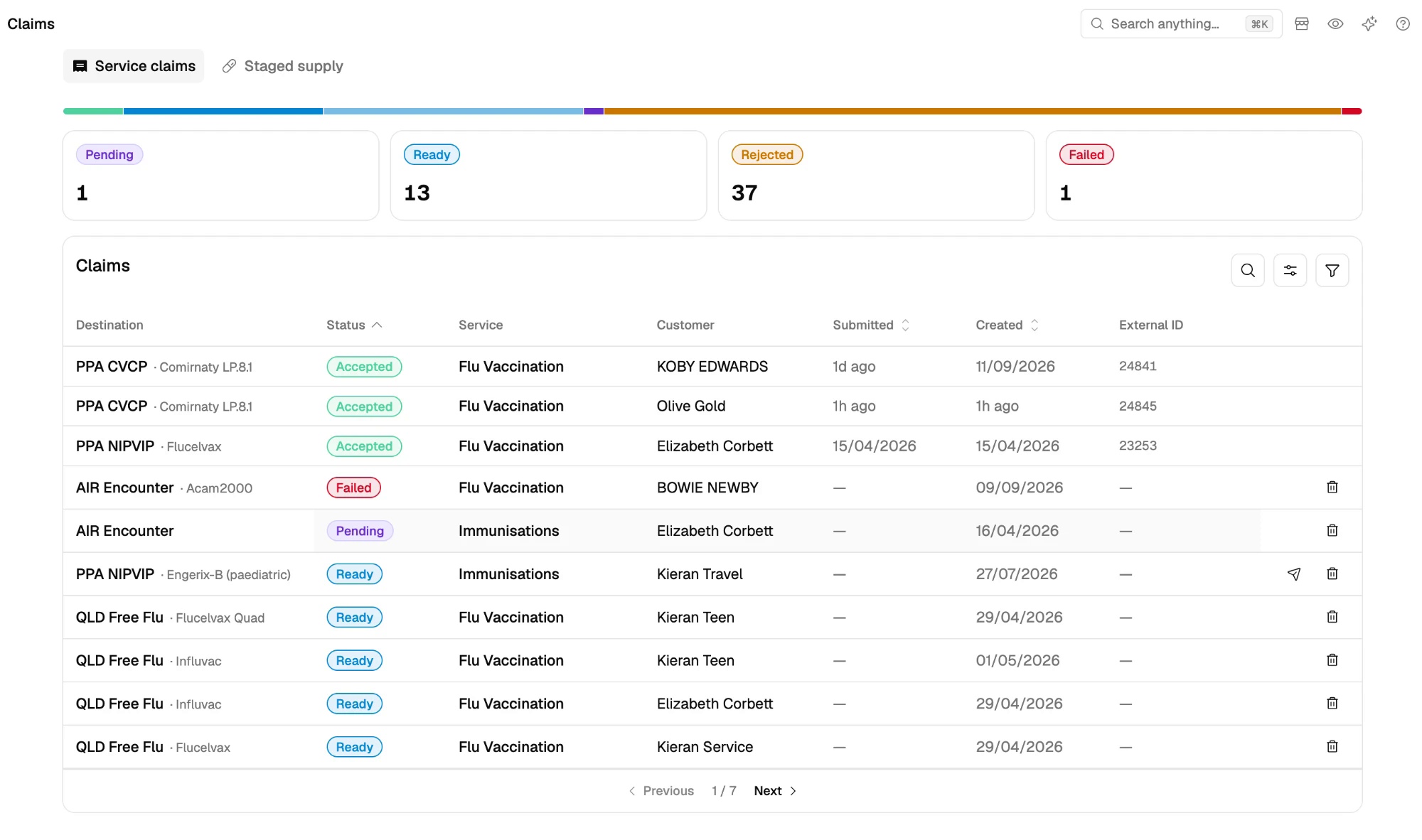
Status summary
The coloured bar across the top shows how your claims are split across Accepted, Submitted, Ready, Pending, Rejected and Failed. Select a segment to filter the list to that status.
Below the bar, four cards count the claims you may need to act on:
- Pending – still processing; no action needed yet
- Ready – ready to review and submit
- Rejected – rejected by the provider; review and amend to resubmit
- Failed – something went wrong; review and retry
Select a card to filter the list to that status, and select it again to clear the filter. To find Submitted, Accepted, Ineligible or Removed claims, use the Status filter.
Search
Select the search icon and search by customer or service name. Use it when you know who the claim is for but not its status.
Filters
Open the filter panel to narrow further. Useful filters include Status (multi-select across every claim status), Integration (AIR, PPA, State), Claim type (CVCP, NIPVIP, MedsCheck, and similar), and a date range by Submitted or Created date. Clear all resets every filter at once.
Created date vs Submitted date
The date filter lets you choose which date to range over – the two answer different questions:
- Created date – when the encounter was recorded and the claim was prepared in Light. Use this to see every claim that originated in a given period, regardless of where it is in the workflow. Good for "what happened at my pharmacy last week?".
- Submitted date – when the claim was actually sent to the provider. Use this to reconcile Light against your provider portal (PPA Online, PRODA) – the submitted date is what the provider sees, so it's the one to match when payments or statements come through.
Choosing what you see
The Claims table can be tailored to match how you work. Open the Columns menu in the table toolbar to toggle which columns appear – useful when you don't claim across every program and only need to see the destinations relevant to your pharmacy.
- The vaccine name appears beside the destination, so you can spot a flu or RSV claim at a glance without opening it.
- Status and Service are always shown. Error and Resolved are hidden until you turn them on.
- The action column on the right stays put as you scroll horizontally, so the row's primary action – typically Submit or Amend – is always reachable on a narrow screen.
- The Columns menu remembers your choice for next time. Select Reset in the menu to go back to the default columns.
The table
Each row is one claim. The default columns are Destination (the program, such as PPA NIPVIP, AIR Encounter or QLD Free Flu, with the vaccine), Status, Service, Customer, Submitted, Created and External ID. The last column surfaces actions that apply to the row's current state – typically Submit or Amend, or nothing for read-only states – see Claim statuses for which actions are available when.
Staged supply claims
The Claims page has a separate Staged supply tab, and – unlike other claims – staged supply claims aren't prepared automatically. Open the tab to see your staged supply claims for the month against your claim allowance, then select Generate claims to prepare them. As with every claim in Light, you still lodge them in the PPA Portal and mark each as Submitted afterwards. See Recording Staged Supply for the full flow.
Last updated 24 September 2026