Recording a general consultation
Use General Consult to record a pharmacy service that doesn't have its own form – select the reason for the consult and record it as a structured SOAP note or a narrative free-form note.
General Consult lets you record a pharmacy service that doesn't have its own dedicated form – an asthma consult, for example. Select the reason for the consult, then record it as a structured SOAP note or a narrative free-form note.
Starting the service
There are three ways to start:
- From Services – go to Services, select Add, choose the General Consult service, then select an existing customer or add a new one.
- From the customer – open the customer's record, select Services, then choose Add service and select the General Consult service.
- From a booking – if the patient booked in for the consult, start the encounter from their booking.
Selecting the reason
Select the reason for the consult – what you're seeing the patient for, such as an asthma consult – or choose Other. Recording the reason means the consult is captured for reporting alongside your other services, and in future the reason may surface templates, content and resources relevant to the consult.
Recording the consult
Record the consult as either a structured note or a narrative note:
- Structured (SOAP) – record against Subjective, Objective, Assessment, and Plan, so the note follows a consistent structure.
- Narrative – a single free-form note, when you'd rather write it up in your own words.
You record one or the other. You can still use all the tools on the right-hand side – dispense history, immunisation history, vitals, notes, attachments, or booking in a follow-up.

Bright idea
Step-by-step or continuous. Work through the consult one section at a time as a step-by-step wizard, or as a single continuous scroll – switch with the Form display control in the encounter header.
Recording the actions taken
Record the actions taken during the consult – tick all that apply, such as Advice provided, Product or medicine supplied, Referred for care, or Notified for information.
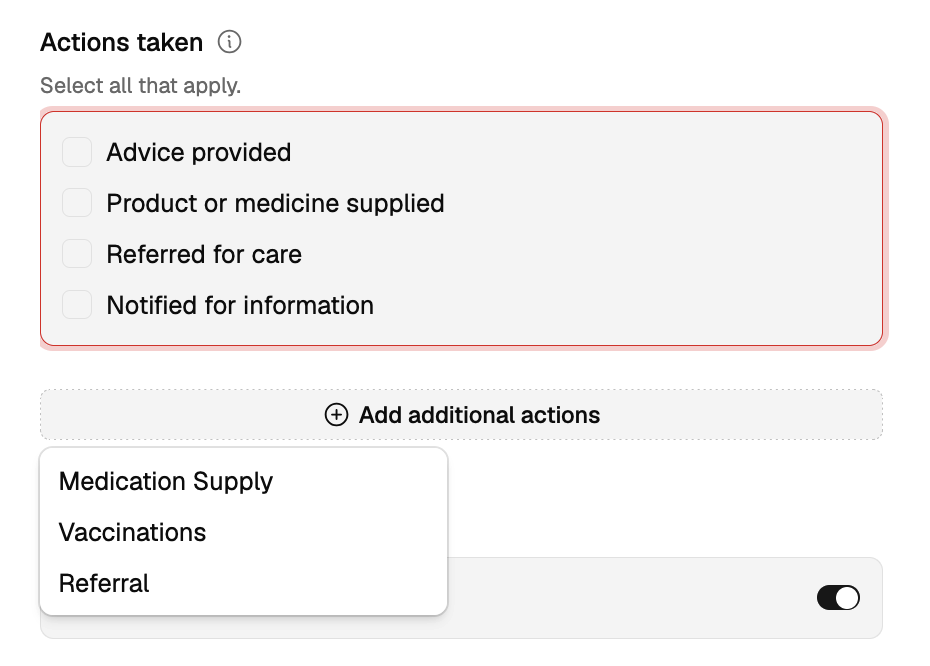
To capture the detail behind an action, select Add additional actions and choose the one you need – each adds its own section to complete:
- Medication Supply – record the medicine you supplied.
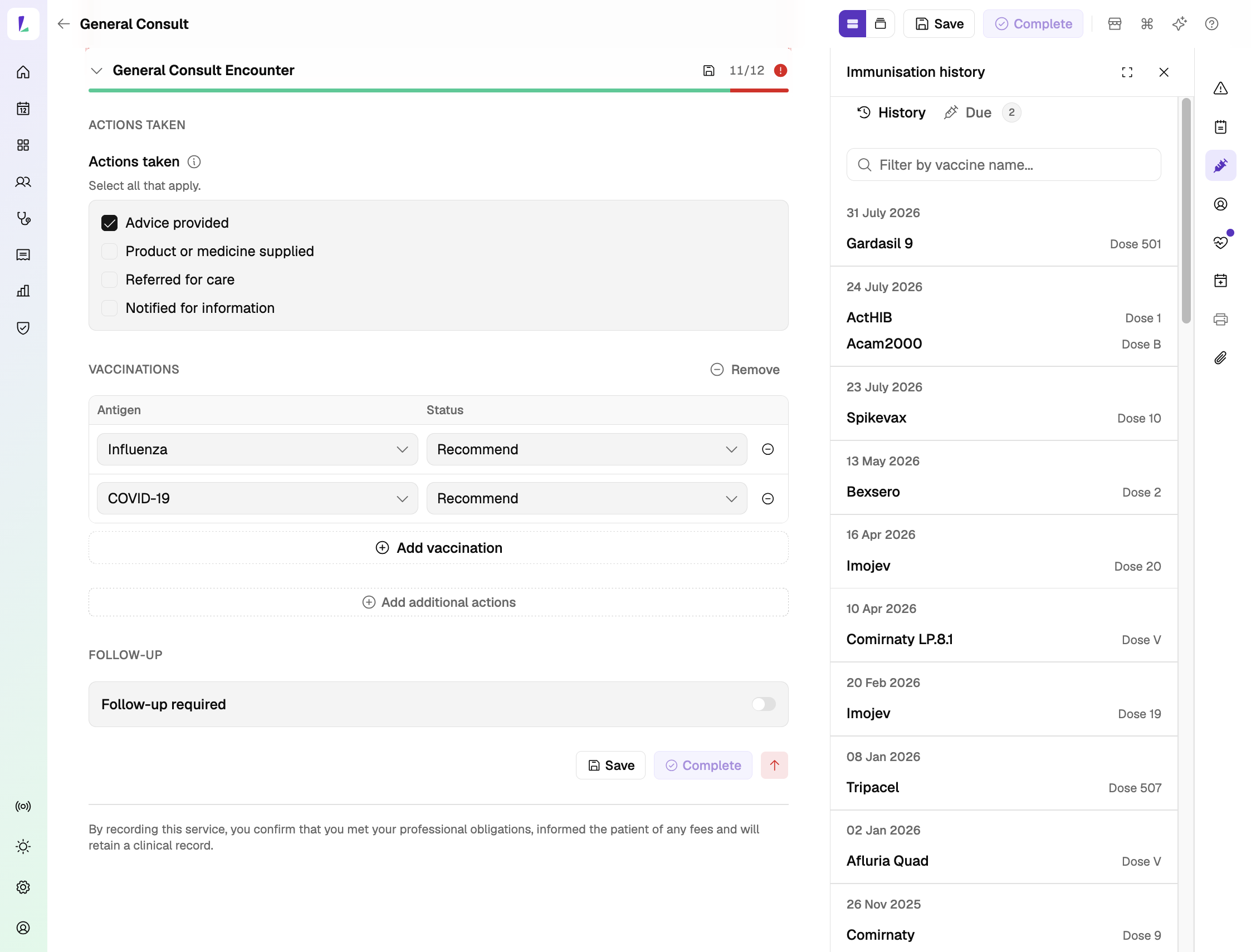
- Vaccinations – plan the vaccinations for the patient. Add each antigen and set its status (for example, Recommend). You don't administer them in the consult – on completion you can carry on to the vaccination encounter (see below).
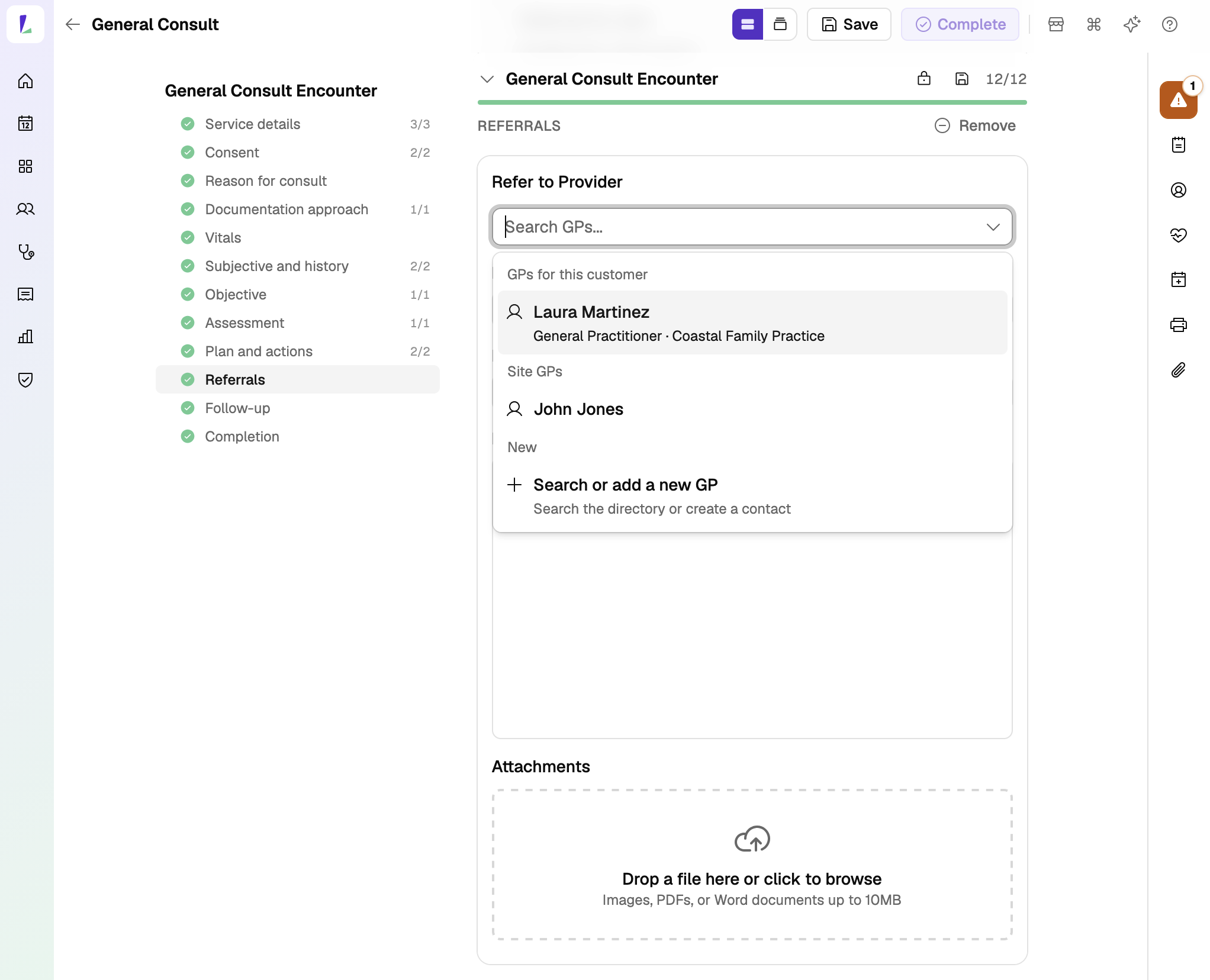
- Referral – record a referral. It's added to the patient's referral list, where you can see and manage it alongside their other referrals – see Recording a referral.
Each added section asks for the details it needs, and if you remove an action later, any section you've already filled in is kept.
Bright idea
While you have the patient with you, it's a good time to check AIR – open the Immunisation History panel and switch to Due to see any routine vaccinations that are due.
Completing the record
Complete the encounter to save the record. See Completing an encounter.
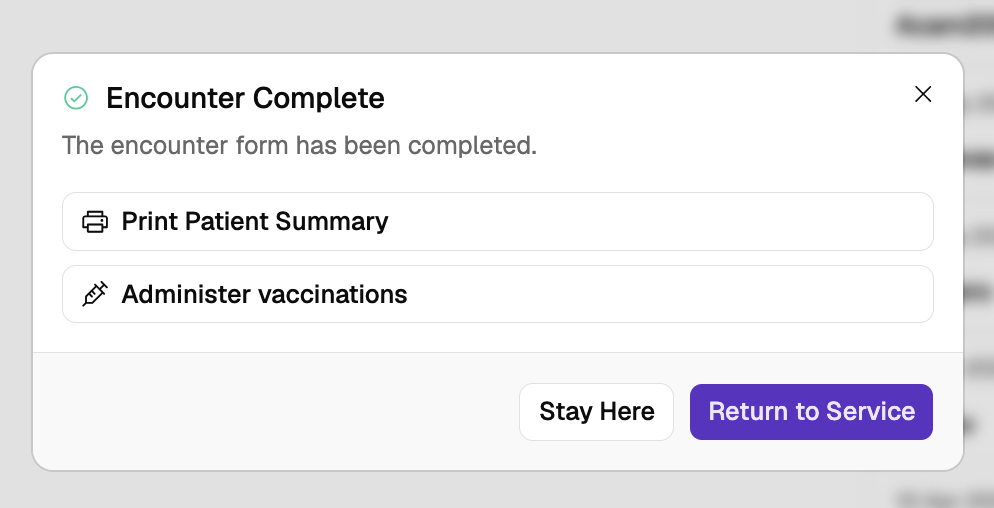
If you planned any vaccinations, the Encounter Complete dialog offers Administer vaccinations – select it to carry on to the vaccination encounter with those vaccines populated, ready to administer and submit to AIR. See Recording a vaccination.
Recording responsibility
This article explains how to record this encounter in Light. Practitioners remain responsible for delivering the service in accordance with applicable clinical, program and jurisdictional requirements and for maintaining a complete and auditable record. See Recording Encounters in Light.