Managing professional contacts
Add a patient's GP and other health professional contacts against their record, and see the full directory of contacts in Settings.
Record a patient's GP and other health professional contacts against their record, so the people involved in their care are on file. Every contact you add also appears in a directory under Settings, where you can see and manage the full list in one place.
Adding a contact to a patient
- Open the patient's record
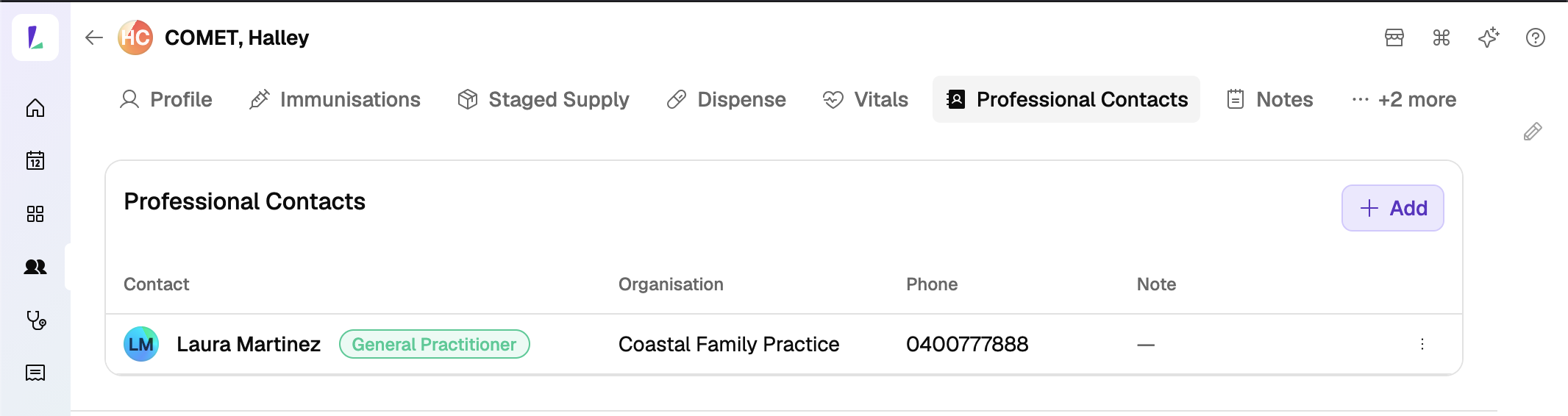
Go to Customers and open the patient, or reach them from a booking or service. Open the Professional Contacts tab (it may sit behind + more if the tab bar is full).
- Add a contact
In the Professional Contacts panel, tap Add. Enter the contact's details – their name, profession (such as General Practitioner), organisation, phone, and any note.
- Save
The contact appears in the list, with their profession, organisation, and phone. It's also added to the contacts directory under Settings.
The contacts directory
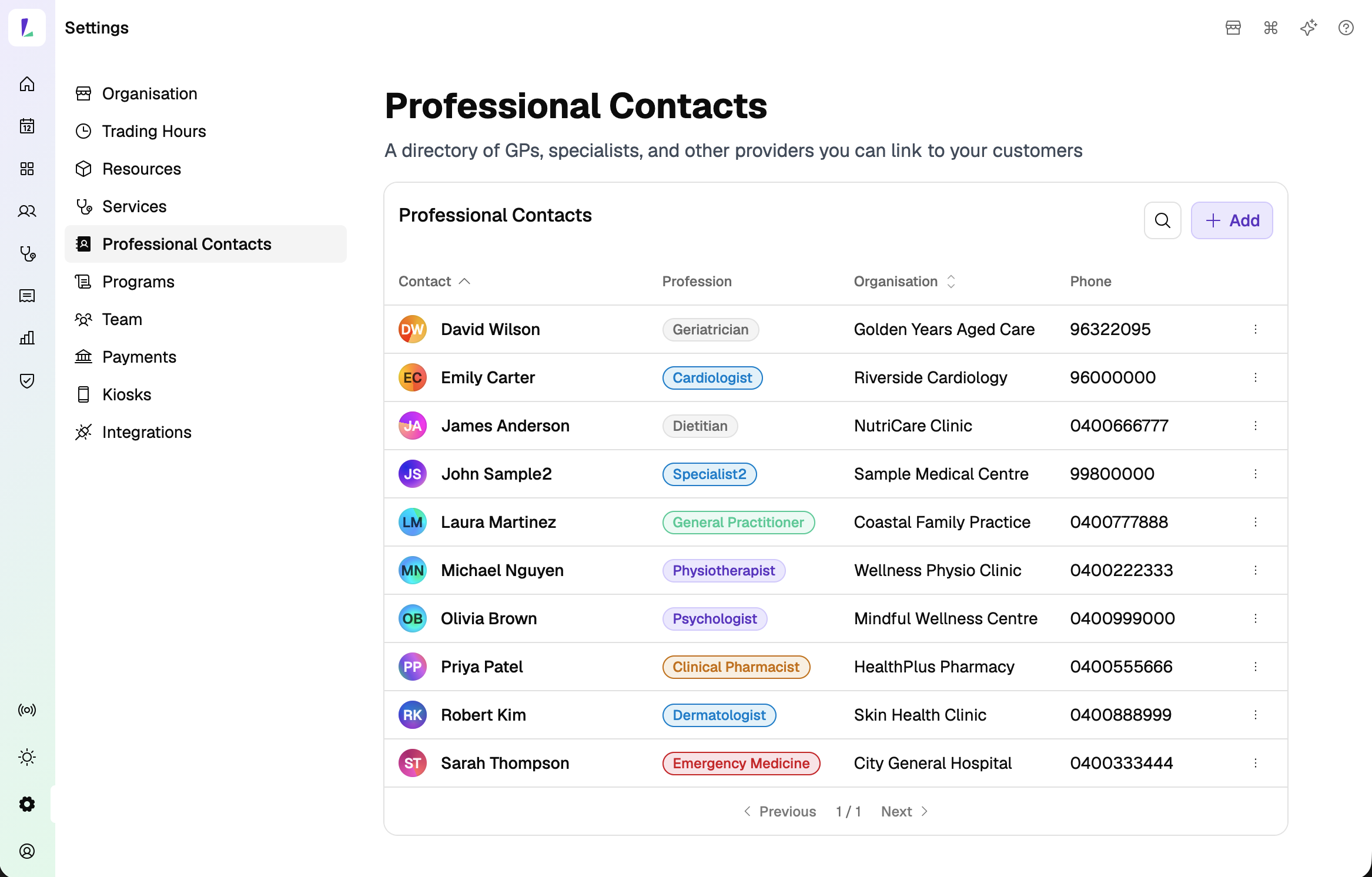
All contacts also live in their own directory at Settings›Professional Contacts – GPs, specialists, and other providers you can link to your customers. Each entry shows the contact, their profession, organisation, and phone. Search the list, or tap Add to add a contact directly here.
A fast follow will let you search for a GP within an encounter to add them to referrals, so you won't need to leave the encounter to attach a contact.